# Quick Start Guide
source: https://developer.mastercard.com/track-search/documentation/quick-start-guide/index.md
## Overview {#overview}
The Mastercard Track Search provides a set of APIs that let you consume the merchant acceptance and Mastercard Track Business Payment Service databases in a variety of ways for efficient and secure querying. This tutorial guides you through the process of onboarding and being able to consume this data.
>
> #### You Can Follow this Guide to Learn: {#you-can-follow-this-guide-to-learn}
>
> * How to create a project for the service.
> * How Mastercard Developers approaches authentication.
> * How to generate your credentials and API client.
> * How to get access to Sandbox and Production.
## Accessing the API {#accessing-the-api}
1. Navigate to [Mastercard Developers](https://developer.mastercard.com/) and click sign up and create an account.
2. Activate your account by opening the link sent to your email address, and log in.
3. Request access to the API if needed. APIs with a 'lock icon' require permission to view their documentation and create a project. To gain access to these services, you will need to submit an access request form. Once submitted, you will receive an email confirmation approving or denying your access.
## Generate Your Credentials {#generate-your-credentials}
To generate your Sandbox and Production credentials you must create a new Mastercard Developers project. Generating Sandbox credentials will give you access to our Sandbox, which has rich, mocked data, that will help you understand the API.
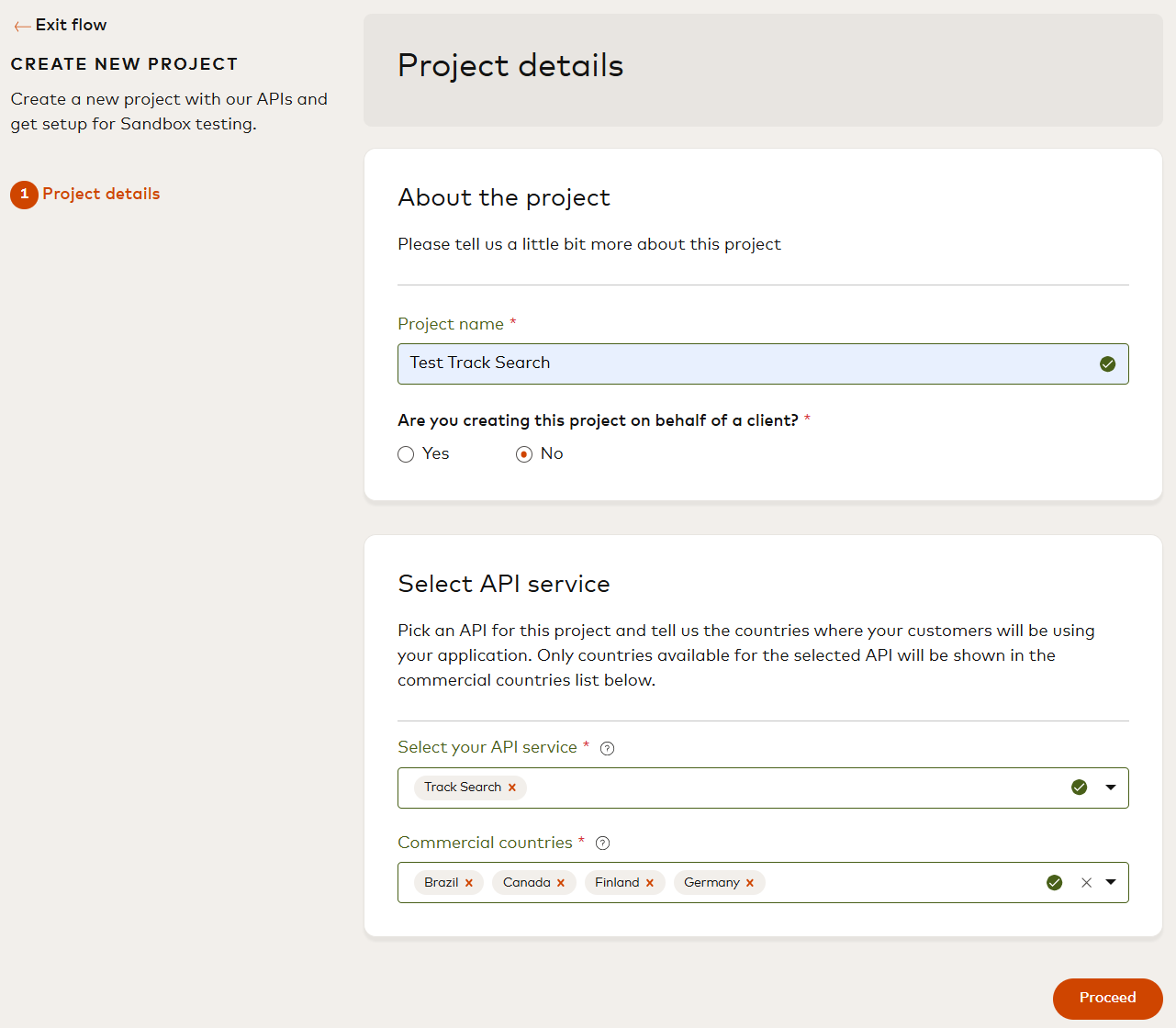
1. Create a project on your [My Projects](https://developer.mastercard.com/dashboard) page.
2. Name your project.
3. Indicate whether you are creating a project on behalf of a client.
Note: Check "yes" if you are creating an API integration project for a customer. For example, you could be an integrator, a processor, or a service provider and the customer could be a merchant, issuer, or acquirer.
4. Provide the client company name and client company address (if applicable).
5. Select 'Track Search' for API service.
6. Provide the commercial countries for the project. This field represents where your client is doing business.
Note: If you are creating a project on-behalf of a client, the Commercial countries represent where your client is doing business.
7. Provide additional service details for Track Search.
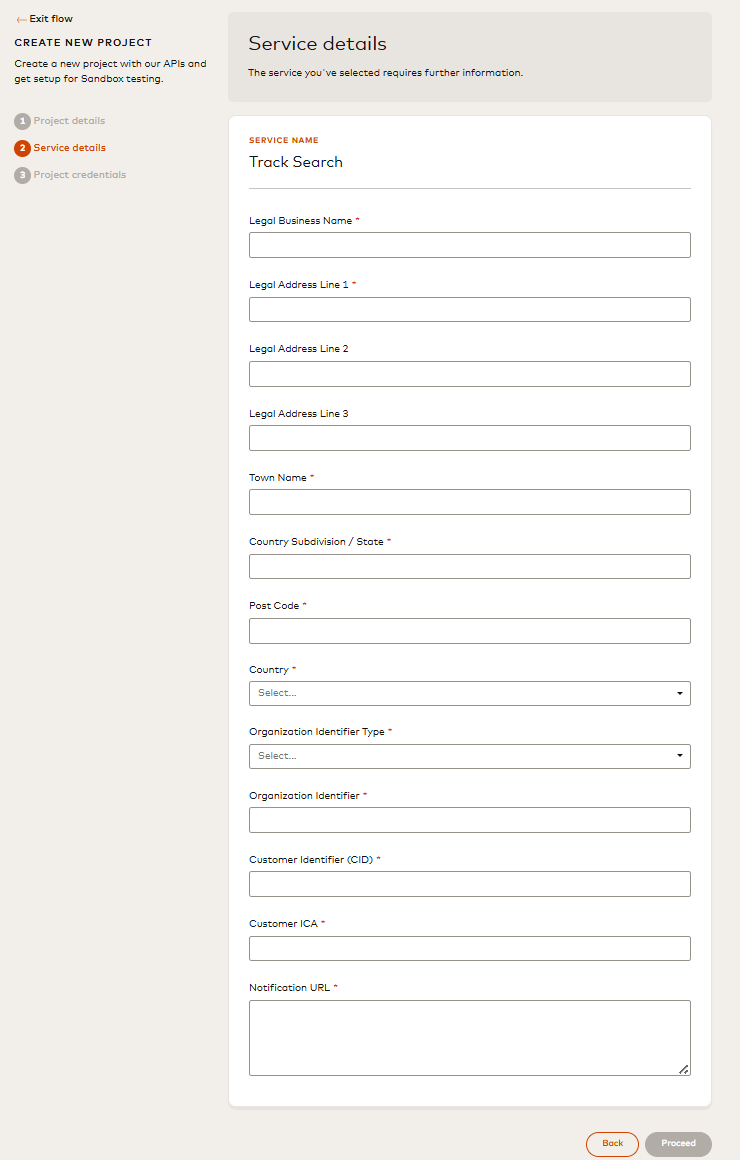
| Field | Description |
|------------------------------|--------------------------------------------------------------------------------------------------------------------|
| Legal Business Name | Legal business name of user's company that is integrating with Search. |
| Legal Address Line 1 | Line 1 business address details of the user's company that is integrating with Search. |
| Legal Address Line 2 | Line 2 business address details of the user's company that is integrating with Search. |
| Legal Address Line 3 | Line 3 business address details of the user's company that is integrating with Search. |
| Town Name | Town or city name of the user's company that is integrating with Search. |
| Country Subdivision | Two-character country sub-division code (state or province) of the user's company that is integrating with Search. |
| Post Code | Post code of the user's company that is integrating with Search. |
| Country | Country of the user's company that is integrating with Search. |
| Organization Identifier Type | Type of unique user's company identifier. |
| Organization Identifier | The value of the Organization Identifier Type. For example, 123456789. |
| Customer Identifier (CID) | The user's Mastercard Customer Identifier. Contact your Mastercard representative if you don't have a CID. |
| Customer ICA | The user's Business Payment Service (agent or non-agent) ICA. |
| Notification URL | The URL path where the Search notifications will be sent. |
8. Download, and keep safe, your PKCS#12 (.p12) keystore file.
9. Create a key alias and keystore password, note this.
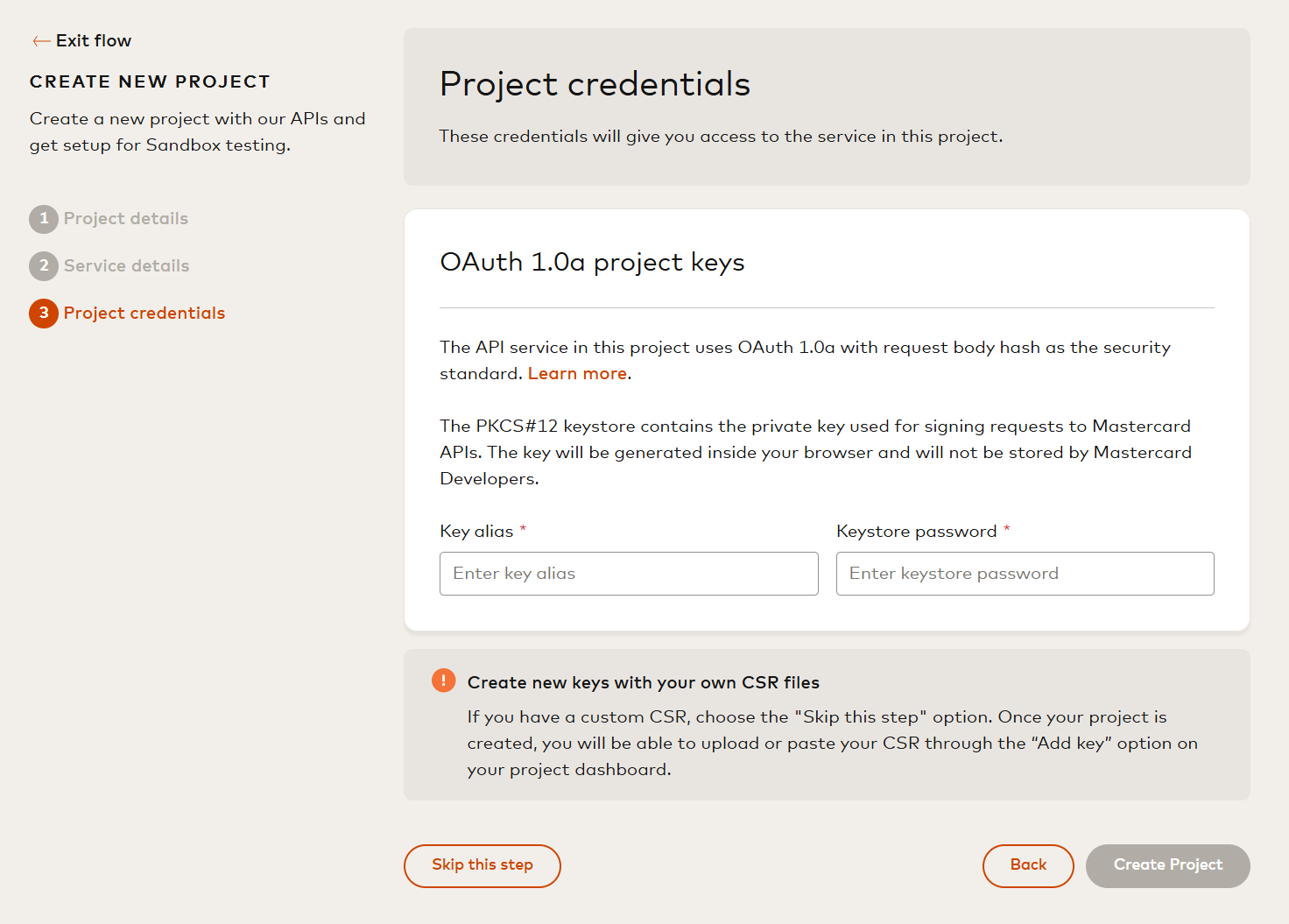
10. Save your Sandbox credentials.

11. Once you complete this flow you will land on the Project page. From the Project page, take note of your consumer key and begin testing.
Warning: **Key Expiry:** Mastercard Track Search Sandbox and Production Keys will expire after 30 days. You will have to generate a new set of keys after they expire.
## Integrate {#integrate}
### Generate Your Own API Client {#generate-your-own-api-client}
1. Navigate to the API documentation page.
2. Download the API specification (OpenAPI or Swagger).
3. Generate and configure an API client for this API.
4. Configure your client using our [client libraries](https://developer.mastercard.com/platform/documentation/security-and-authentication/securing-sensitive-data-using-payload-encryption/#client-libraries).
For a detailed step-by-step guide, see [Generating and Configuring a Mastercard API Client](https://developer.mastercard.com/platform/documentation/security-and-authentication/generating-and-configuring-a-mastercard-api-client/).
## Go-Live {#go-live}
After you have tested your implementation in our Sandbox environments, it is time to **Move to Production**.
### Steps to Moving to Production {#steps-to-moving-to-production}
1. Within your project, select "Request Production Access". 
2. Enter your Production key alias and keystore password. 
3. Save your key alias and keystore password for future reference.
4. Confirm and download your Production keys. Note: Production Credentials are generated instantaneously, but they still need to be approved for Production environment access before you can go live. Once your Production access request has been reviewed, you will receive a notification confirming your access has been approved or denied.
## Next Steps {#next-steps}
Now that you have access to the service, you can begin testing, proceed to the [Use Cases](https://developer.mastercard.com/track-search/documentation/use-cases/index.md) section to learn about the different use cases of the service.