# Using mTLS to Access Mastercard APIs
source: https://developer.mastercard.com/platform/documentation/authentication/using-mtls-to-access-mastercard-apis/index.md
###### Reading Time: *20 minutes*
## Overview {#overview}
Mastercard APIs using mTLS authentication require two-way TLS certificate exchange between the API Client and Mastercard Server.
Diagram simple-mtls-diagram
In the next sections, you will learn a bit more about the [mTLS scheme](https://developer.mastercard.com/platform/documentation/authentication/using-mtls-to-access-mastercard-apis/index.md#mtls-basics) and how to set up certificates for your project.
You will also find a guide on how to generate a simple [API client](https://developer.mastercard.com/platform/documentation/authentication/using-mtls-to-access-mastercard-apis/index.md#2-start-your-integration) for consuming mTLS-enabled APIs.
## mTLS Basics {#mtls-basics}
[The Transport Layer Security (TLS) Protocol Version 1.2](https://tools.ietf.org/html/rfc5246) describes the mutual TLS handshake protocol to establish a secure connection between client and server.
Diagram mtls-handshake-diagram
The next few sections give a brief overview of:
* How to obtain an mTLS client certificate
* Adding the mTLS client certificate to your Mastercard Developers project for Sandbox testing
* Authenticating using your mTLS client certificate
* Moving your Mastercard Developers project to Production
* Adding mTLS client certificates to your project
* Revoking mTLS client certificates
## 1. Getting mTLS Client Certificates for Your Project {#1-getting-mtls-client-certificates-for-your-project}
The client authentication side of mTLS protocol involves a client certificate and a private key, known as a key pair. To use the key pair with Mastercard APIs, you will need to perform onboarding steps detailed here.
### Client Certificates and Environments {#client-certificates-and-environments}
There are two different types of mTLS client certificates, depending on the stage of your project:
1. Sandbox mTLS certificates, which give access to an API sandbox that mimics a live Production environment (`mtf.services.mastercard.com`)
2. Production MLTS certificates, which allow an application to access the Production environment (`services.mastercard.com`)
*Domain/Server URL may vary depending on the API. Please check the API Reference section of the service documentation for the correct Server URL.*
### Creating and Renewing mTLS Client Certificates {#creating-and-renewing-mtls-client-certificates}
You have three options in order to obtain an mTLS client certificate for your project:
#### 1. Request Certificate Directly on Mastercard Developers {#1-request-certificate-directly-on-mastercard-developers}
You can request an mTLS client certificate directly on Mastercard Developers using either a CSR we generate or a custom CSR of your own. This process allows you to obtain a certificate in seconds, eliminating the need to use an external portal and wait for certificate issuance.
For detailed instructions on using your own CSR to generate your certificate, refer to our [Generating mTLS Certificate with a CSR guide](https://developer.mastercard.com/platform/documentation/security-and-authentication/mtls-csr-requirements/index.md).
#### 2. Request Certificate using Key Management Portal {#2-request-certificate-using-key-management-portal}
The Key Management Portal (KMP) is an application available in [Mastercard Connect](https://www.mastercardconnect.com/). KMP is a self-service portal for Mastercard customers, which allows them to request and exchange keys and certificates with Mastercard.
The portal provides guided workflows to create and manage requests for key and certificate exchange, as well as an inventory of all PKI for Business Partners keys and certificates that have been exchanged between Mastercard and customers using KMP.
Access the Key Management Portal application on [Mastercard Connect](https://www.mastercardconnect.com/) to obtain mTLS client certificates. You can access the user guide within the KMP application for instructions on how to use the application.
##### Download the appropriate Client Certificate {#download-the-appropriate-client-certificate}
Once you are notified that your Certificate Request is signed, you can access the client certificate in KMP.
When accessing your certificate, you will see an option to download the certificate. Ensure that the "Format PKCS #8" option is selected.
The certificate will be available to download. Save it to a safe location so that it can be uploaded to your project in Mastercard Developers.
#### 3. Uploading a Certificate from a Supported CA {#3-uploading-a-certificate-from-a-supported-ca}
Warning: This option should **ONLY be done if required by an API in your project**. Otherwise, you should always use a certificate generated directly through Mastercard Developers or one obtained from the Key Management Portal (KMP).
In addition to obtaining certificates through Mastercard's Key Management Portal (KMP), you now have the option to upload a certificate from an external Certificate Authority (CA) supported by Mastercard Developers.
##### Supported Certificate Authorities {#supported-certificate-authorities}
| Certificate Authority Name |
|----------------------------|
| Buypass |
| CPN Enterprise |
| CPN RootCA |
| DigiCert |
| GoDaddy |
| NETS AS |
| USERTrust |
| VeriSign |
## 2. Start Your Integration {#2-start-your-integration}
In this section, we will explain how to generate a simple API client for consuming mTLS-enabled [APIs](https://developer.mastercard.com/products) offered on Mastercard Developers.
You will learn how to:
* Generate an API client using [OpenAPI Generator](https://openapi-generator.tech/), which provides generators and library templates for supporting multiple languages and frameworks.
* Configure the generated API client to use your certificate for authentication.
Note: We use Java for code samples in this guide, but OpenAPI Generator supports building clients for most major languages.
### Step-By-Step Guide {#step-by-step-guide}
#### Step 1: Create an API Project in Mastercard Developers {#step-1-create-an-api-project-in-mastercard-developers}
1. [Log in](https://developer.mastercard.com/account/log-in) to Mastercard Developers
2. On the *My Projects* page, click the *Create New Project* button and select the API that's enabled for mTLS authentication
Tip: You can also create an integration project by browsing the [API section](https://developer.mastercard.com/apis) to choose the API of your choice. Then click on *Create Project* from the API documentation page.
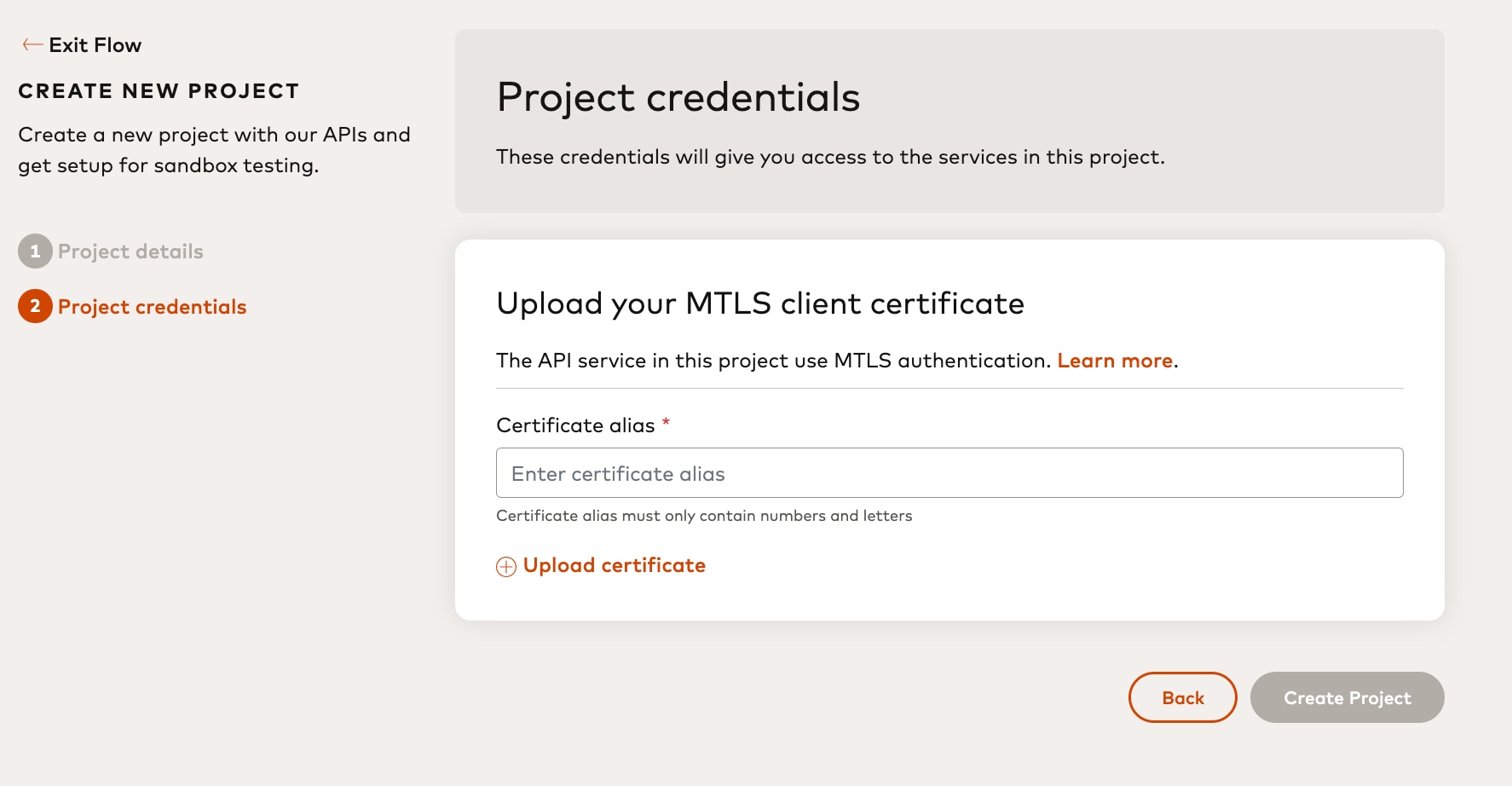
3. You will be asked to upload an mTLS Certificate to be used in Sandbox.
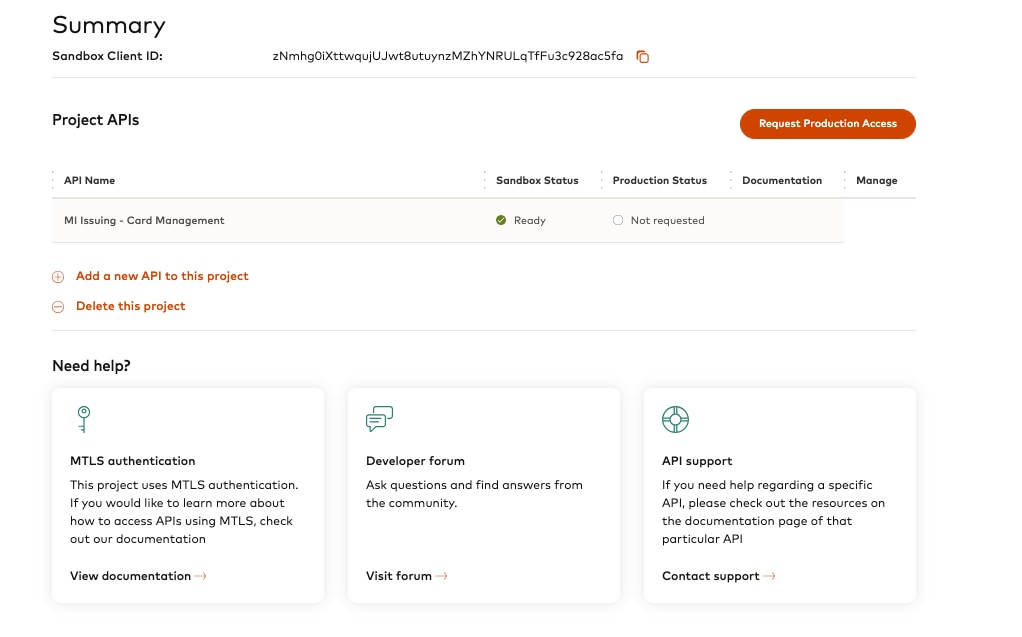
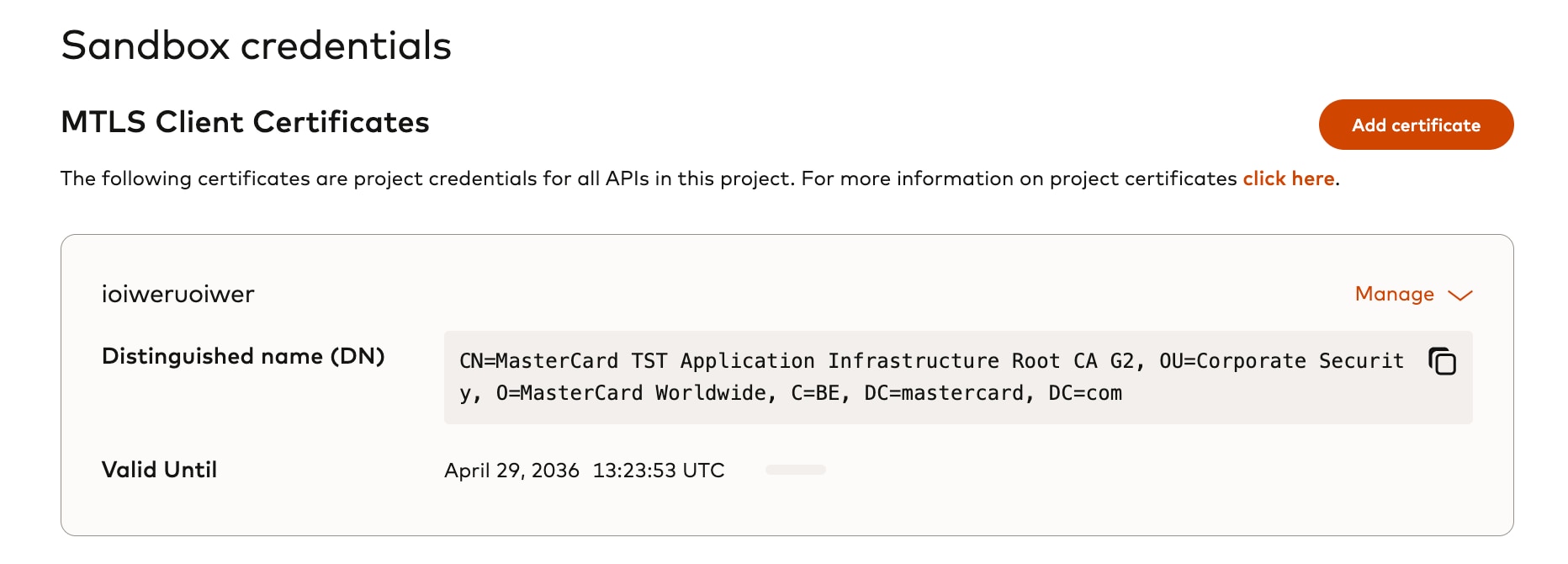
4. Once your project is created, you will see all API(s) in your project on the *Summary* page and the mTLS certificates on the *Sandbox credentials* page
*** ** * ** ***
#### Step 2: Download an OpenAPI Specification {#step-2-download-an-openapi-specification}
1. Access the documentation for the chosen API
2. Click *Open Specification* : 
For this tutorial, we will use the fictional Swagger Petstore API
[petstore.yaml](https://static.developer.mastercard.com/content/platform/swagger/petstore.yaml) (58KB)
Note: Swagger Petstore is used for illustrative purposes only, and calling the endpoints in this guide will result in an error.
*** ** * ** ***
#### Step 3: Generate an API Client Project {#step-3-generate-an-api-client-project}
1. Download the OpenAPI Generator CLI (you can follow the instructions [here](https://openapi-generator.tech/docs/installation))
2. Create a `config.json` file with some options for OpenAPI Generator:
* Java
* Python
* NodeJS
* C#
```json
{
"groupId" : "com.acme.app",
"artifactId" : "mastercard-api-client",
"artifactVersion" : "1.0.0",
"invokerPackage" : "com.acme.app.mastercard",
"apiPackage" : "com.acme.app.mastercard.api",
"modelPackage" : "com.acme.app.mastercard.model"
}
```
```json
{}
```
```json
{
"useES6" : false
}
```
```json
{
"targetFramework" : "netstandard2.1",
"packageName" : "Acme.App.MastercardApi.Client",
"packageVersion" : "1.0.0",
"sourceFolder" : "",
"netCoreProjectFile": true,
"modelPropertyNaming":"camelCase",
"optionalAssemblyInfo": false
}
```
3. Execute the following command for the language in which you want the client to be generated (we assume here the `openapi-generator-cli` command is available):
* Java
* Python
* NodeJS
* C#
```sh
openapi-generator-cli generate -g java --library okhttp-gson -i *.yaml -c config.json -o api_client
```
If using openapi generator version \>= 5.0.0, use below command to generate the client:
openapi-generator-cli generate -g python-legacy -i \*.yaml -c config.json -o api_client
"\>
```sh
# If using openapi generator version < 5.0.0, use below command to generate the client:
openapi-generator-cli generate -g python -i *.yaml -c config.json -o api_client
# If using openapi generator version >= 5.0.0, use below command to generate the client:
openapi-generator-cli generate -g python-legacy -i *.yaml -c config.json -o api_client
```
```sh
openapi-generator-cli generate -g javascript -i *.yaml -c config.json -o api_client
```
```sh
openapi-generator-cli generate -g csharp-netcore -i *.yaml -c config.json -o api_client
```
3. Look at the `api_client` directory for the generated project
Tip: More options are available. The OpenAPI Generator CLI documentation can be found [here](https://openapi-generator.tech/docs/usage)
*** ** * ** ***
#### Step 4: Create an API Client Instance and Enable Authentication {#step-4-create-an-api-client-instance-and-enable-authentication}
1. Create a test project or an application project
2. Create an instance of the generated `ApiClient` class and configure it as below:
* Java
```java
ApiClient client = new ApiClient();
OkHttpClient.Builder httpClientBuilder = client.getHttpClient().newBuilder();
// Configure the Mastercard service URL
client.setBasePath("https://mtf.services.mastercard.com/petstore");
// Load your client certificate
KeyStore pkcs12KeyStore = KeyStore.getInstance("PKCS12");
pkcs12KeyStore.load(new FileInputStream("./path/to/your/client-cert.p12"), "keystorepassword".toCharArray());
// Configure a secure socket
KeyManagerFactory keyManagerFactory = KeyManagerFactory.getInstance(KeyManagerFactory.getDefaultAlgorithm());
keyManagerFactory.init(pkcs12KeyStore, "keystorepassword".toCharArray());
TrustManagerFactory trustManagerFactory = TrustManagerFactory.getInstance(TrustManagerFactory.getDefaultAlgorithm());
trustManagerFactory.init(pkcs12KeyStore);
SSLContext sslContext = SSLContext.getInstance("TLS");
sslContext.init(keyManagerFactory.getKeyManagers(), null, new SecureRandom());
client.setHttpClient(
httpClientBuilder
.sslSocketFactory(sslContext.getSocketFactory(), (X509TrustManager) trustManagerFactory.getTrustManagers()[0])
.build()
);
```
3. Replace:
* `./path/to/your/client-cert.p12` with the path to your PKCS#12 client certificate
* `keystorepassword` with the password for your PKCS#12 client certificate
* `https://mtf.services.mastercard.com/petstore` with the actual environment and service path you want to call
Note: OpenAPI Generator supports several HTTP clients and frameworks for Java (Jersey, OkHttp, RestTemplate, Retrofit, ...). In this guide, we chose to use `okhttp-gson`.
*** ** * ** ***
#### Step 5: Call the Service {#step-5-call-the-service}
We can now send requests to the Mastercard service. Let's try for instance the Petstore `/pets` endpoint. For that, use the generated `PetsApi` class, as in the following code:
\[comment\]: # (Include the swagger shortcode here when we have a real mTLS-enabled service)
* Java
```java
PetsApi petsApi = new PetsApi(client);
List response = petsApi.searchPets("AVAILABLE");
```
Note: That's it 👏. The API client will take care of deserializing the response into a list of `Pet` instances.
*** ** * ** ***
## 3. Move Your Project to Production {#3-move-your-project-to-production}
### Production Request {#production-request}
When you're ready to move your project to Production, you can request for Production access through Mastercard Developers.
1. [Log in](https://developer.mastercard.com/account/log-in) to Mastercard Developers
2. On the *My Projects* page, select a project with mTLS enabled API(s)
3. Click the *Request Production Access* button to start. You will be asked to upload an mTLS Certificate to be used in Production
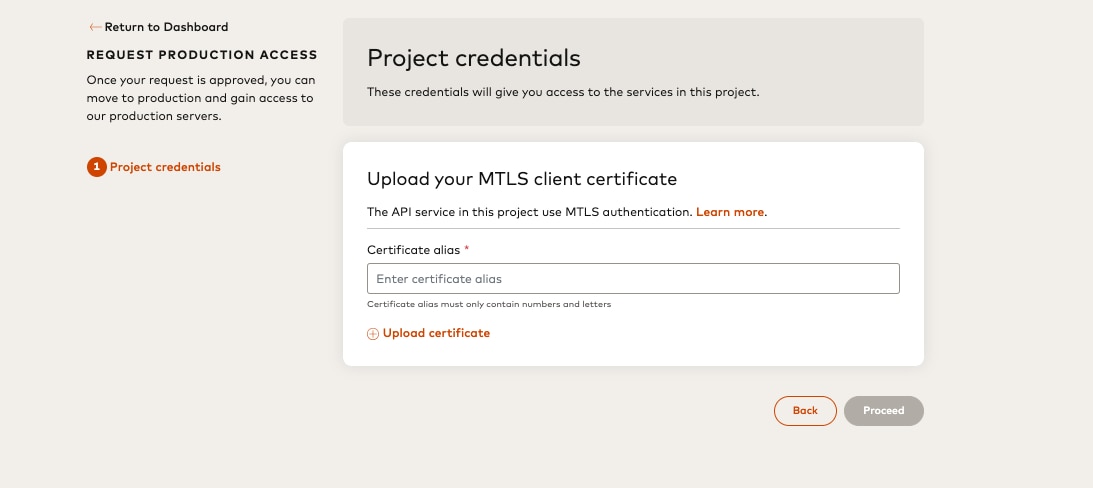
4. Once your Production request is made, you will see the mTLS Certificate for Production on the *Production Credentials* page.

*** ** * ** ***
## 4. Maintain mTLS Client Certificates in Your Project {#4-maintain-mtls-client-certificates-in-your-project}
### Adding a new mTLS Client Certificate {#adding-a-new-mtls-client-certificate}
When your mTLS certificate is about to expire, you will need to obtain a new certificate using one of the three options below and add the certificate for Sandbox or Production in your Mastercard Developers project.
1. [Log in](https://developer.mastercard.com/account/log-in) to Mastercard Developers
2. On the *My Projects* page, select a project with mTLS enabled API(s)
3. On the *Sandbox Credentials* page or *Production Credentials* page, click the *Add certificate* button to begin adding a new mTLS certificate for the respective environment.

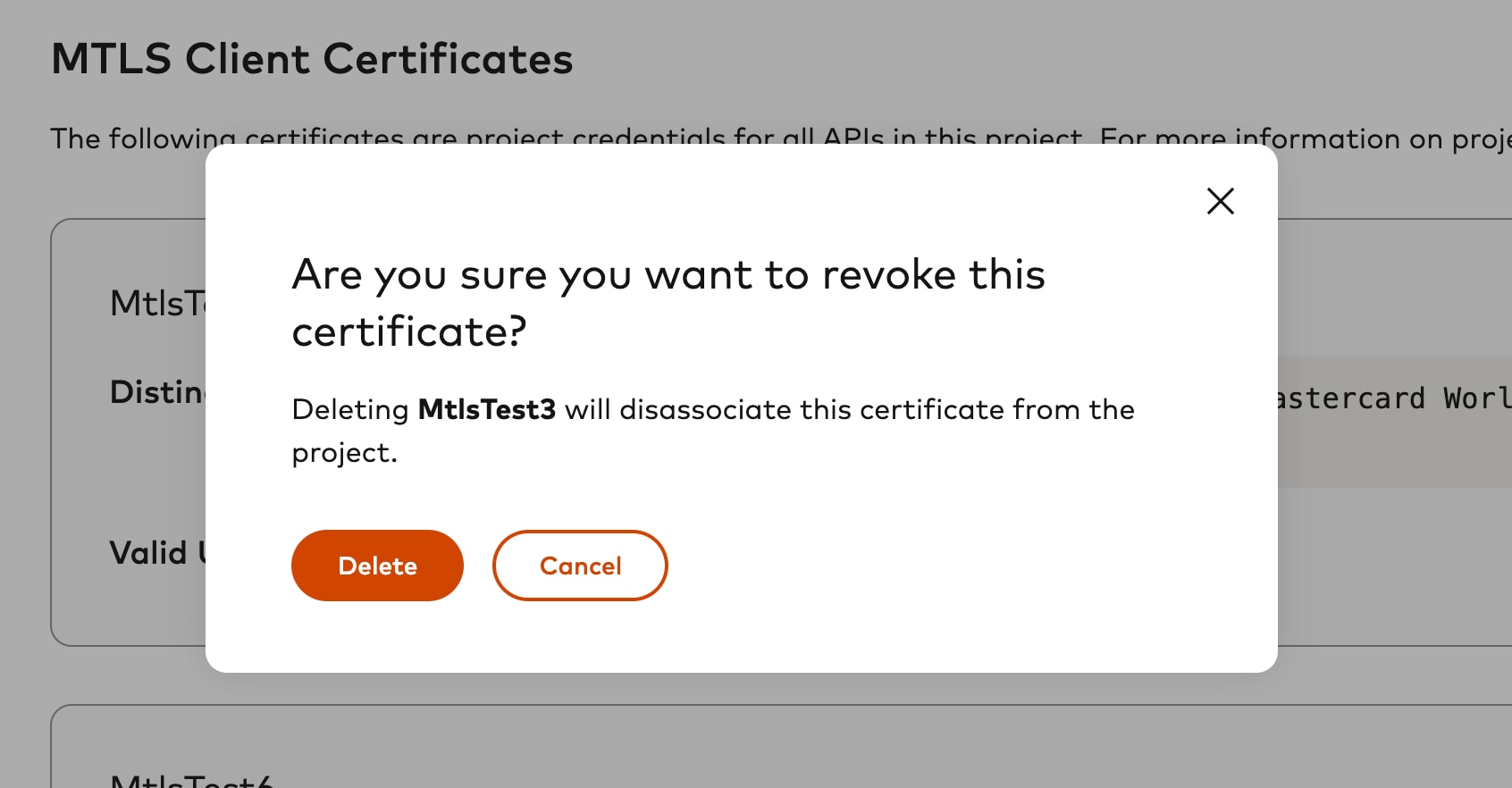
### Revoking a mTLS Client Certificate {#revoking-a-mtls-client-certificate}
After you've added a new mTLS certificate, you should revoke any expired certificates from the Mastercard Developers project.
1. Click on "*Manage*" menu for the mTLS certificate
2. Click on "*Revoke certificate*"

3. You will be asked to confirm revoking the certificate
## Development Tips {#development-tips}
### Error Troubleshooting {#error-troubleshooting}
In case your request is rejected, you will receive a response with the following fields:
```json
{
"Source": "{Source}",
"ReasonCode": "{ReasonCode}",
"Description": "{Description}",
"Recoverable": false
}
```
Here is a common error that an mTLS API consumer may encounter while accessing mTLS enabled APIs
#### INVALID_CLIENT_CERT {#invalid_client_cert}
The client certificate is invalid or missing from the request. Retry using a valid cert signed by supported certificate Authorities.