# Company Verification
source: https://developer.mastercard.com/platform/documentation/account-management/company-verification/index.md
## Overview {#overview}
Company verification is one of the prerequisites required before you can request Production access for a service on Mastercard Developers. This ensures Mastercard is engaging with real organizations, reducing risks related to fraud and regulatory compliance. It also connects your developer activity to your official, pre-existing business relationship with Mastercard for streamlined onboarding and improved transparency.
## 1. Initiate Verification {#1-initiate-verification}
1. Log in to [Mastercard Developers](https://developer.mastercard.com/account/log-in)
2. Go to the Project Summary page.
1. You should see a *Production access prerequisite* section with a "Verify your company details" task
3. Click on "Get Started." 
Alternatively, you can start the company verification process from the [*My Account* page](https://developer.mastercard.com/account/profile)
1. Scroll to the "Developers API Keys" section
2. Click on "Update and verify your company details" 
## 2. Select Verification Method {#2-select-verification-method}
You can verify your company details using any of these three methods:
1. **Link your Mastercard Developers profile** with an existing [Mastercard Connect](https://www.mastercardconnect.com/) profile. This results in instant self-verification.
2. **Enter your Mastercard Company ID (CID)**. A CID is a 6-10 digit ID that Mastercard assigns to a business so that it can be recognized and verified across Mastercard.
3. **Enter your company details** if you're a new customer or don't know your Mastercard CID.
## 3. Complete Verification {#3-complete-verification}
### Method #1 - Link your Mastercard Developers and Mastercard Connect profiles {#method-1---link-your-mastercard-developers-and-mastercard-connect-profiles}
This method allows you to instantly self-verify your company details by linking your Mastercard Developers profile with your existing Mastercard Connect profile.
Note: This method will only be made available to you if the following conditions apply:
1. You have a [Mastercard Connect](https://www.mastercardconnect.com) account with the email address used on your Mastercard Developers account.
2. The company details in Mastercard Connect are fully verified and the Mastercard Connect account status is "active"
1. If a corresponding Mastercard Connect account is found, the company data will be pre-populated. Review the data and click the "Confirm" button to verify your company. 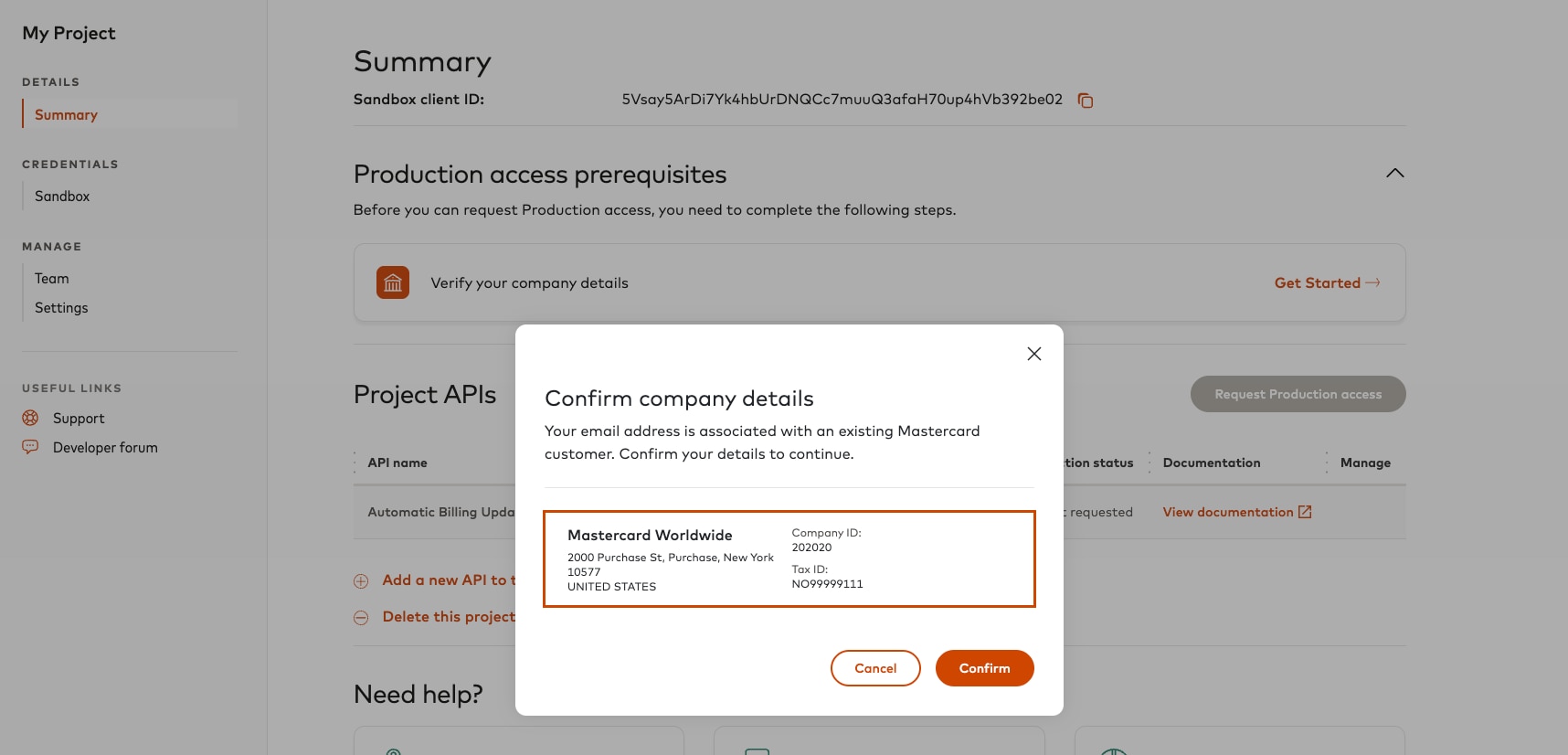
2. Your company details are now confirmed and the Production access prerequisites card should disappear. 
3. You will see a VERIFIED status badge on your [*My Account* page](https://developer.mastercard.com/account/profile) 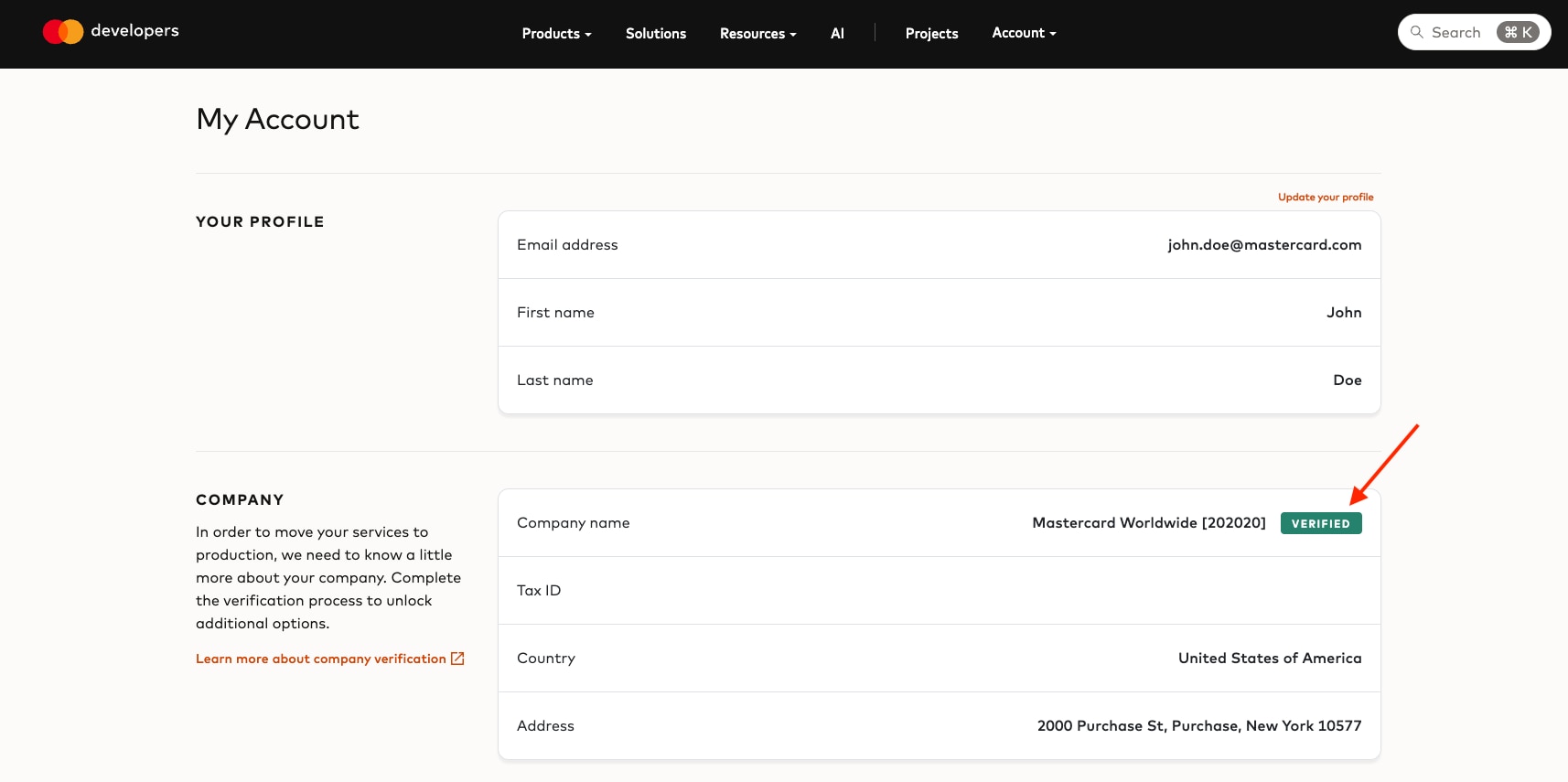
### Method #2 - Enter your Mastercard CID {#method-2---enter-your-mastercard-cid}
This verification method allows you to provide your Mastercard CID to look up your company details and submit for verification.
1. On the Company Verification card, select the first option to "Enter your Mastercard Company ID" 
2. Provide your Mastercard CID and click the "Search" button 
3. Select the matching company and click the "Request verification" button 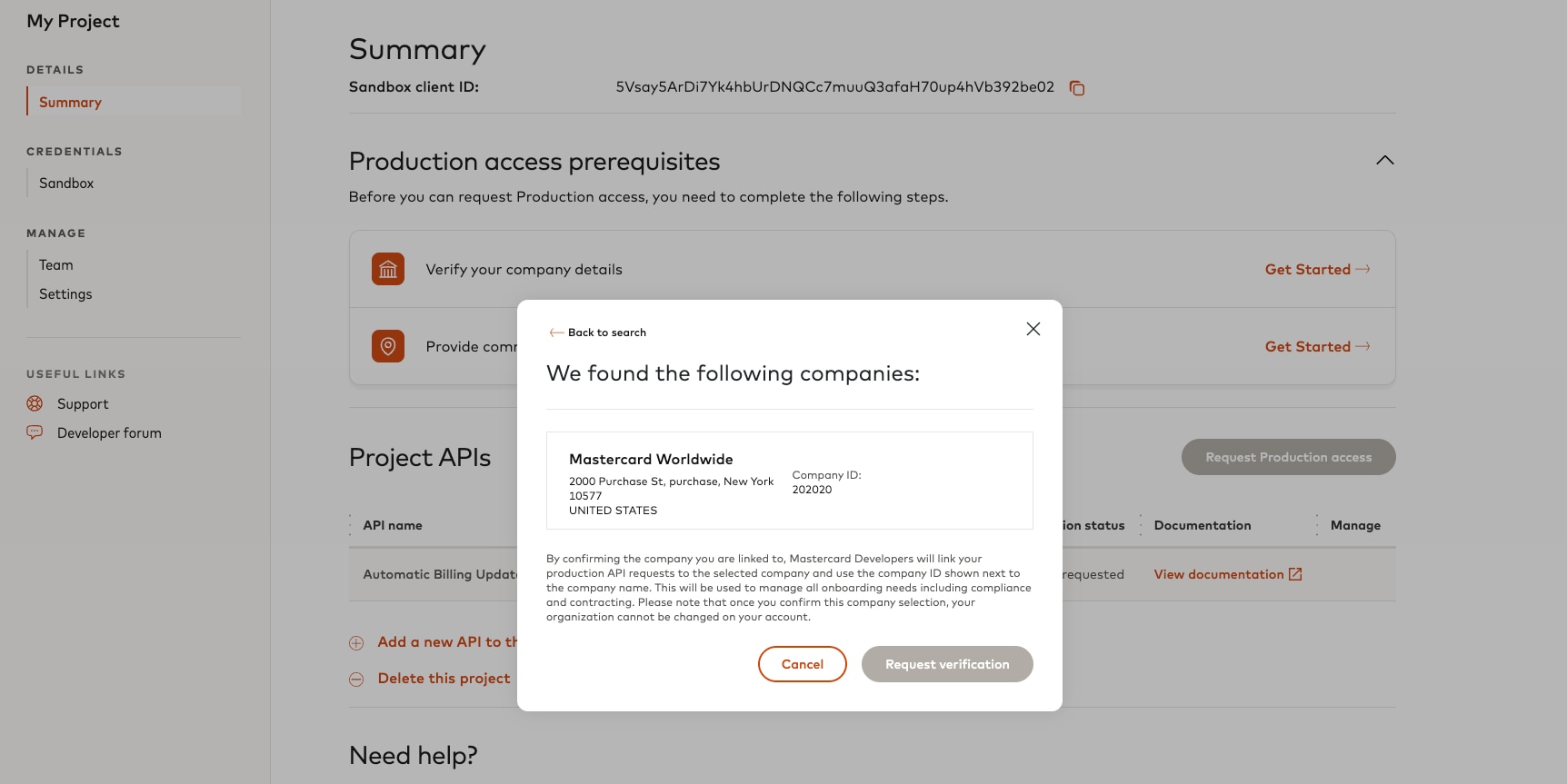
4. A company verification request will be sent for review. You will see a `VERIFICATION IN PROGRESS` status badge on the prerequisite step. 
5. Once your company has been verified, the Production access prerequisite card will disappear 
### Method #3 - Enter your company details {#method-3---enter-your-company-details}
If you don't know your Mastercard CID, this verification method allows you to search for it using your company details and submit for verification. If you don't have a Mastercard CID or can't find yours, you can submit your company details for verification.
1. On the Company Verification card, select the second option to "Enter your company details"

2. Fill in all of the required fields and click the "Search" button
Note: For customers located in Unites States of America and Canada it is required to provide valid postal code and state. 
3. Select the company that matches your company details and click the "Request verification" button
Note: The company verification process relies on the accuracy of the company details provided by the customer. Please ensure all information is correct to help avoid verification delays.  In case there are no matching companies for the search criteria provided, alter the search criteria to get matching results or select the details you provided (as visible at the end of the screen) to proceed further. 
4. A company verification request will be sent for review. You will see a `VERIFICATION IN PROGRESS` status badge on the prerequisite step.

5. Once your company has been verified, the Production access prerequisite card will disappear

6. You will see a VERIFIED status badge on your [*My Account* page](https://developer.mastercard.com/account/profile)

## 4. Onboarding for Companies Not Yet Registered with Mastercard {#4-onboarding-for-companies-not-yet-registered-with-mastercard}
1. If the selected company is not yet registered with Mastercard and automated onboarding has been enabled for the selected service, the onboarding process is initiated.
2. Provide your company phone number and click "Next" button. 
3. Check all the provided details and proceed with "Submit onboarding request". 
4. In some services, onboarding can be completed automatically and a new Company ID (CID) is assigned to the company. Once your company has been verified and onboarded, the Production access prerequisite card will disappear. 
5. For other services, additional company information is required before onboarding can be completed. In this case, you will see an `ONBOARDING IN PROGRESS` status badge on the prerequisite step and receive an email containing a link and instructions to continue the onboarding process. 
6. Access your mailbox and look for an e-mail from [noreplycompanyonboarding@mastercard.com](mailto:noreplycompanyonboarding@mastercard.com).
7. Select the "Get started" button. 
8. Once the company verification is completed, the verification status on your Mastercard Developers account will be updated automatically. The Company ID will then be displayed alongside the rest of your company information. Note: It can take up to 2 hours for the status of your Mastercard Developer's account to be updated to Verified 
## 5. Additional Review Required for Onboarding {#5-additional-review-required-for-onboarding}
1. In some scenarios, automated company onboarding cannot be completed automatically and requires additional review.

2. When this happens, a Due Diligence Reference Number (DDRN) is generated, and the request is routed through Mastercard's due diligence process for further validation.
You will receive an email containing the DDRN and information about the review process.
3. What happens next?
Mastercard's internal teams will review and process the request.
4. What if my onboarding request remains pending?
Additional review may take longer than the standard automated onboarding process.
If your onboarding request remains pending and you would like a status update, you can contact:
* Your Mastercard representative
* [API Support](https://developer.mastercard.com/support)
When contacting support, please include your DDRN to help the team locate your request.
## FAQs {#faqs}
This can happen if the CID is invalid, not active, or recently created. If a CID was recently created, wait 24 hours and try again. If no results come back for your search, you can submit your company verification request without a CID. The right CID or a new CID will be assigned when your company details are verified. If one of the options has the correct company name and address, pick that company. If none match, you can submit your company details without a match. We'll take care of assigning the correct details for you. It's not recommended to pick options with mismatching addresses because those may represent different regional entities. You can submit your company details without picking a match. We'll take care of assigning the correct details for you. It's not recommended to pick options with mismatching addresses because those may represent different regional entities. Please refer to [Method #3 - Search for your company](https://developer.mastercard.com/platform/documentation/account-management/company-verification/index.md#method-3---enter-your-company-details) above to submit your request. Please contact [API Support](https://developer.mastercard.com/support). They will check on your request and let you know if any additional information is required. Yes, please contact [API Support](https://developer.mastercard.com/support). 
Once you're logged in, Mastercard Developers checks if your email address is registered and your company details verified in Mastercard Connect. If they are and your user profile is unverified in Mastercard Developers, the banner will appear.
You can follow the steps in [Method #1](https://developer.mastercard.com/platform/documentation/account-management/company-verification/index.md#method-1---link-your-mastercard-developers-and-mastercard-connect-profiles) above to verify your company details.