# Mastercard Data Connect
source: https://developer.mastercard.com/open-finance-us/documentation/connect/index.md
The Mastercard Data Connect application (Data Connect app) allows your customers to connect to their Financial Institutions (FIs) and permission the accounts they want to share. This gives Mastercard the authorization to access the customer's financial data and share it with a third party. Customers can manage their shared accounts through the Data Connect app, or through their Financial Institution's website if available.
## How It Works {#how-it-works}
Your app displays the Data Connect app to your customers. They go through a Data Connect experience to find their Financial Institution, log in, and permission the accounts they want to share. After the customer reviews and submits their financial data, the Data Connect session ends and the customer returns to your application flow.

1. Connect your environment to our Open Finance API platform.
2. Generate a Data Connect URL and add it to your application.
3. The customer follows the URL and goes through the Data Connect application flow.
4. The customer connects to their Financial Institutions and permissions their accounts.
Tip: If the Financial Institution has a direct (OAuth) connection, then the login screen is hosted by the Financial Institution itself.
Where the Financial Institution hosts the login screen, it might also show an account selection screen, or in some cases it will automatically add all the eligible accounts, rather than present a selection screen.
## Data Connect Flows {#data-connect-flows}
Data Connect provides two main experience types:
* [Data Connect Full](https://developer.mastercard.com/open-finance-us/documentation/connect/index.md#data-connect-full) - provides the full UX flow with a wide range of customisation features; includes the ability to cater for joint borrowers within a single Data Connect session.
* [Data Connect Lite](https://developer.mastercard.com/open-finance-us/documentation/connect/index.md#data-connect-lite) - provides a minimal UX with a limited set of features; your own app implements the UX for the customer to select Financial Institutions and accounts.
You can also use:
* [Data Connect Fix](https://developer.mastercard.com/open-finance-us/documentation/connect/generate-2-connect-url-apis/index.md#data-connect-fix) - provides an experience to fix broken FI connections
* [Data Connect Email](https://developer.mastercard.com/open-finance-us/documentation/connect/generate-2-connect-url-apis/index.md#send-data-connect-email) - sends a Data Connect URL to a customer by email so they can use it later
### Data Connect Full {#data-connect-full}
The following UX screens show the default Data Connect Full experience flow.
Note: The Data Connect experience can be configured to provide a different UX flow for different product types. For example, the UX can prompt the user to upload a paystub or connect a payroll account if you are implementing a Lend report. You can also change branding and other options. See [Configure the Data Connect Experience](https://developer.mastercard.com/open-finance-us/documentation/connect/configure-connect-experience/index.md) for details.
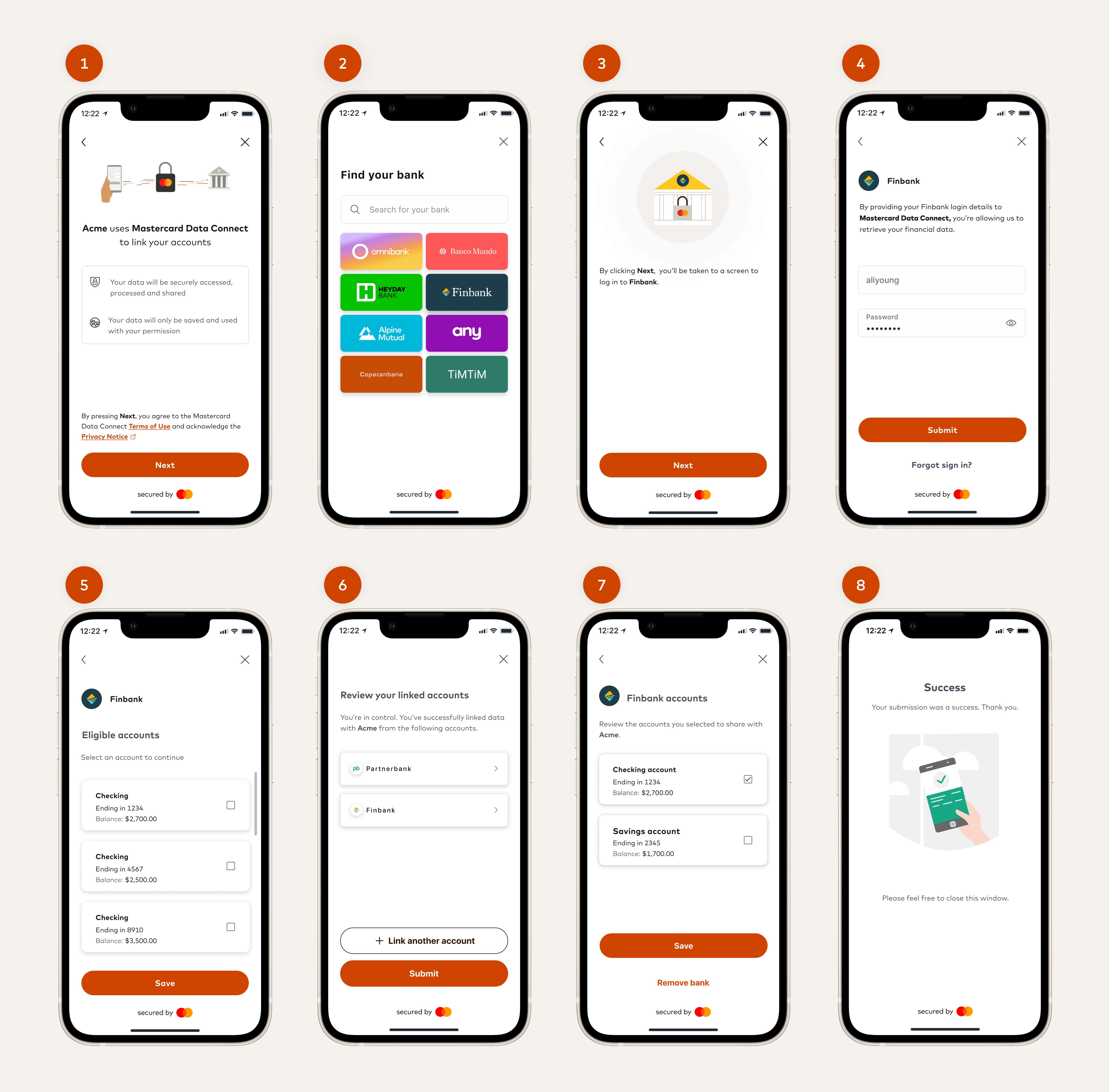
1. Accept the Terms and Conditions and the Privacy Policy agreement.
2. Search Financial Institutions.
3. Connect to a Financial Institution.
4. Log in to the Financial Institution.
5. Select the accounts to share financial data.
6. Review your connected accounts and the account details.
7. Review the accounts you selected to share with Mastercard.
8. After the data is successfully submitted the Data Connect session ends.
### Data Connect Lite {#data-connect-lite}
If you want to create your own Financial Institution search and account selection screens, you can use Data Connect Lite instead of Data Connect Full. Data Connect Lite enables you to own more of the experience for a seamless UX.
With Data Connect Lite the screens shown will be as follows:
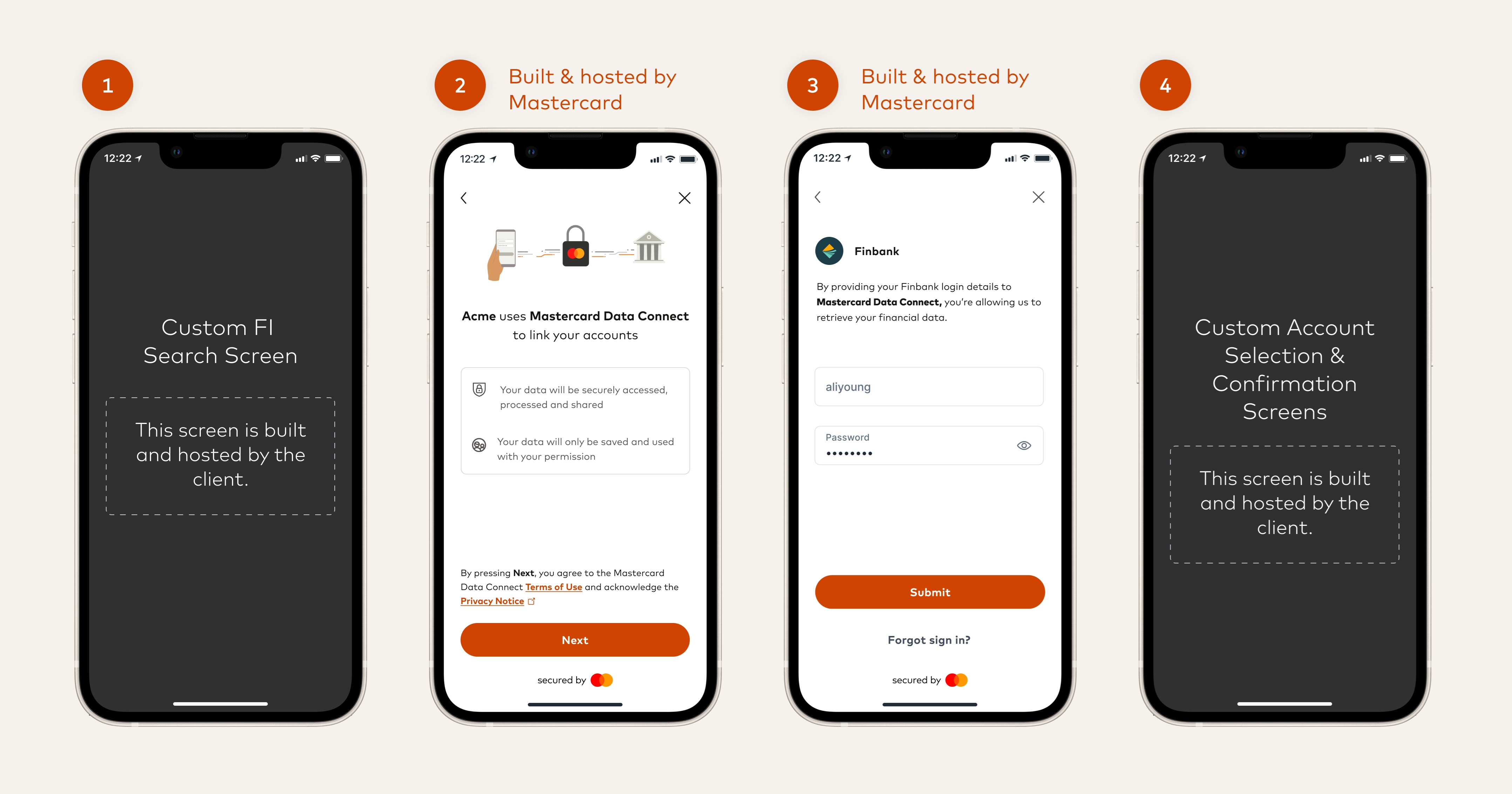
1. You provide your own screen where the customer can search for and select a Financial Institution.
2. Once the customer selects a Financial Institution, you call Data Connect Lite (with the ID of the selected institution) and Data Connect launches with the Terms and Conditions and Privacy Policy agreement screen.
3. The customer can then log in to the Financial Institution.
4. Control then returns to your application where you can show your own screens for account selection and confirmation.
For guidance on best practices for designing a user experience, see the [Data Connect section](https://developer.mastercard.com/open-finance-us/documentation/experience-design-guide/connect-enhancements-and-features/index.md) of our [Experience Design Guide](https://developer.mastercard.com/open-finance-us/documentation/experience-design-guide/index.md).
Warning: Once a customer adds an account through Data Connect, the account remains
associated with their customer record. If the customer later closes that account
at their financial institution and subsequently re-enters Data Connect to add a
new account at the same institution, the previously closed account is still
visible in their account list.
However, Mastercard Open Finance is not able to aggregate data from closed
accounts. While the account record persists, any attempts to refresh or retrieve
data from a closed account fail because the account is no longer accessible
at the financial institution.
Note: We also provide a special version of the Data Connect experience, Connect Transfer, which enables customers to also connect to payroll providers or merchants/service providers. This is useful for the following:
* Enable customers to easily switch their payroll deposit to a new account (Deposit Switch).
* Enable customers to switch recurring automatic payments to a new account (Bill Pay Switch).
For example, you can use Deposit Switch to enable a new banking customer to easily authorize the payment of their salary into their new bank account. With Bill Pay Switch, the customer can also move their recurring payments (for example, their Netflix subscription, Amazon or Apple account, or other regular bill payments).
These are separate products which are not supported by the regular Data Connect application and SDKs.
See the [Deposit Switch and Bill Pay Switch documentation](https://developer.mastercard.com/open-finance-us/documentation/products/pay/switch/index.md) for details.
## Next Steps {#next-steps}
* Integrate using one of our Data Connect SDKs (for mobile and web), or using webviews. See [Integrating with Data Connect](https://developer.mastercard.com/open-finance-us/documentation/connect/integrating/index.md).
* Generate a Data Connect URL for your application. See [Generate Data Connect URL](https://developer.mastercard.com/open-finance-us/documentation/connect/generate-2-connect-url-apis/index.md).
* If you are interested in using Connect Transfer for Deposit Switch or Bill Pay Switch, see [Deposit Switch and Bill Pay Switch](https://developer.mastercard.com/open-finance-us/documentation/products/pay/switch/index.md).