# API Tutorial
source: https://developer.mastercard.com/match/documentation/tutorial-structure/index.md
## Introduction {#introduction}
This tutorial creates a simple Java program that can make an API call to the Match Sandbox environment. It includes generating an API client library using OpenAPI Generator, using the Match API OpenAPI Specification.
You will go through below steps:
1. Add appropriate resources to your project
2. Add proper dependencies
3. Generate the API Client SDK
4. Make an API call
## Onboarding {#onboarding}
Please follow the [Quick Start Guide](https://developer.mastercard.com/platform/documentation/getting-started-with-mastercard-apis/quick-start-guide/) that provide the steps for creation of Mastercard Developers project. A Mastercard Developer project must be created to onboard and gain credentials for the Sandbox, MTF and Production environments.
Once a Mastercard Developers project has been opened, then the next step is onboarding and integrating with the APIs. Onboarding must occur in the following sequence: Sandbox, MTF, then Production.
## Create {#create}
Create a project on your [My Projects](https://developer.mastercard.com/dashboard)
1. Select the Mastercard Alert To Control High Risk Pro (MATCH Pro) as the API
2. Name your project
3. Invite members to your project as collaborators
### Download your Sandbox signing keys {#download-your-sandbox-signing-keys}
1. Save your sandbox key credentials
2. Review the Read Me.txt in your sandbox zip file
3. Begin testing
## Setting Up {#setting-up}
### a) Pre-requisites {#a-pre-requisites}
To complete this tutorial, you need:
* Maven 3.8 or later
* JDK 11 or later
* Intellij IDEA (or any other IDE of your choice)
* [Mastercard Developers Account](https://developer.mastercard.com) with access to Mastercard Match API.
* Mastercard Match Open API specification (Retrieve by clicking on the expandable section on the Match API) [match-pro.yaml](https://static.developer.mastercard.com/content/match/swagger/match-pro.yaml) (85KB)
* Using [OAuth 1.0a](https://developer.mastercard.com/platform/documentation/using-oauth-1a-to-access-mastercard-apis) to Access Mastercard APIs
* [OpenAPI Generator](https://openapi-generator.tech) to generate jar from yaml file
### b) Create a Maven Project {#b-create-a-maven-project}
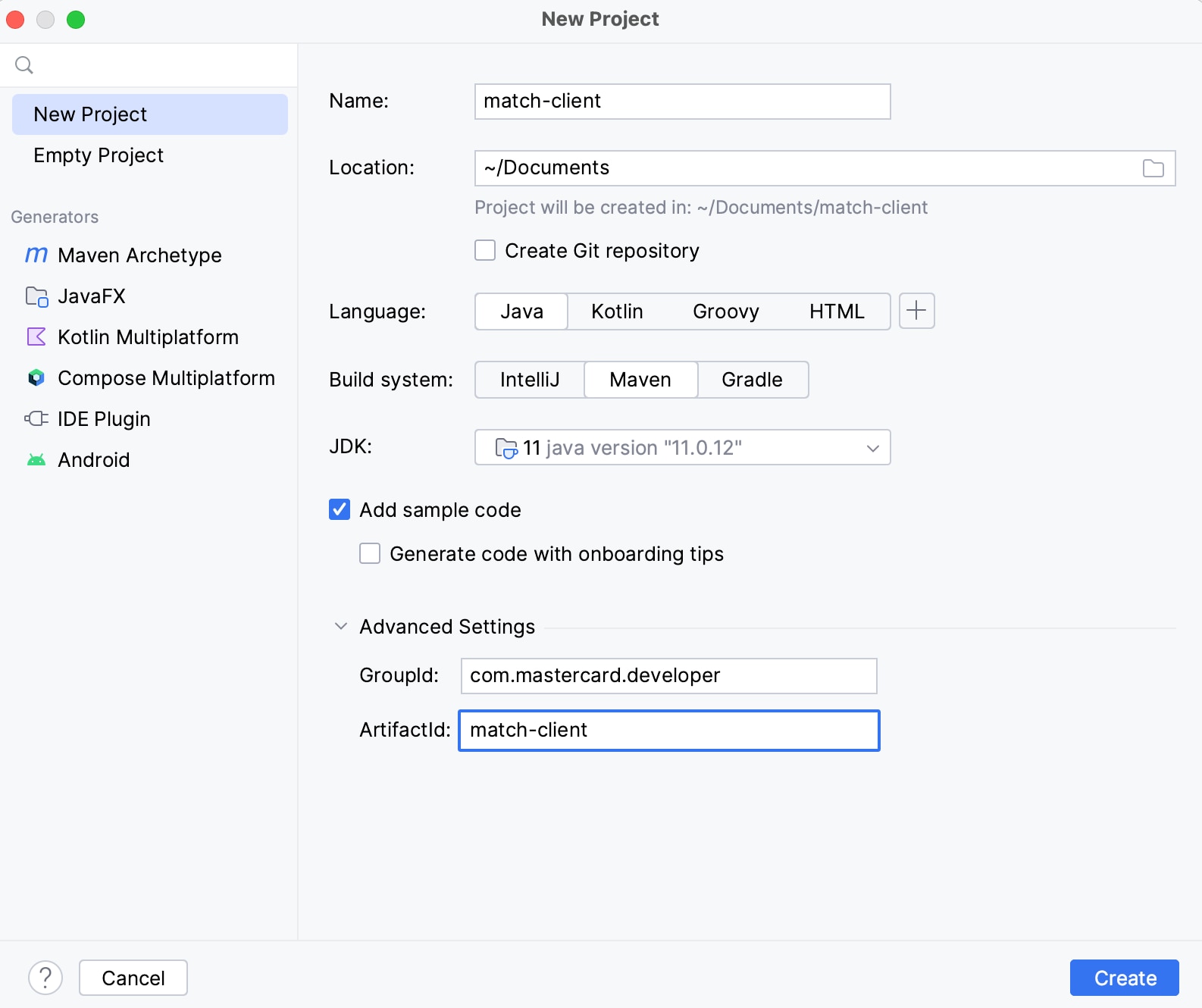
In Intellij IDEA, create a new Maven project, which sets up your directory structure automatically.
Provide ArtifactId and Project name. Here we used the name 'match-client'. See below:
### c) Add Resources {#c-add-resources}
1. Add the Mastercard Match API specification to your Maven project's resources folder.(Retrieve by clicking on the expandable section on the Match API)
2. Add the generated p12 file to your Maven project's resources folder. (Generated by creating Sandbox Signing Key within your project in [Mastercard Developers](https://developer.mastercard.com/dashboard)
Your Maven project directory should look as follows:

### d) Update pom.xml file {#d-update-pomxml-file}
1.Add the following plugin to your Maven project's pom.xml file to add OpenAPI Generator to your project.
OpenAPI Generator generates API client libraries from OpenAPI Specifications (formerly known as Swagger files). OpenAPI Generator provides multiple generators and library templates to support multiple languages and frameworks. You will be using the java generator for this project.
* Plugin
```Plugin
org.openapitools
openapi-generator-maven-plugin
${openapi-generator-version}
Match API REST Client
generate
${project.basedir}/src/main/resources/match-pro.yaml
java
src/gen/java/main
true
```
2.Add the following dependencies to your pom.xml file to add dependencies for the API client library generation and the Mastercard OAuth1 Signer library.
Mastercard offers OAuth1 Signer Libraries which offer code helpers targeting the HTTP clients used by the different OpenAPI Generator Library templates. The libraries are hosted here on [Github](https://github.com/Mastercard).
* Dependencies
```Dependencies
11
${java.version}
${java.version}
UTF-8
1.9.0
4.12.0
5.10.2
1.5.3
1.3.2
7.6.0
com.mastercard.developer
oauth1-signer
${oauth1-signer-version}
com.squareup.okhttp3
okhttp
${okhttp-version}
com.squareup.okhttp3
logging-interceptor
${okhttp-version}
io.gsonfire
gson-fire
${gson-fire-version}
javax.annotation
javax.annotation-api
${javax-annotation-api-version}
org.openapitools
openapi-generator
${openapi-generator-version}
org.junit.jupiter
junit-jupiter-api
${junit-version}
compile
```
When using OpenAPI Generator to generate the API client library, you have two options:
* Generate and use the source files on the fly
* Generate and deploy the source files to a Maven repository In this tutorial, you will be generating the API client library on the fly, so you include the dependencies that are needed to generate the library. (If you were deploying the source files to a Maven repository, you would only need to include the dependency for that repository.)
## Generating the API Client SDK {#generating-the-api-client-sdk}
a) Generate Sources
Now that you have all the dependencies you need, you can generate the sources.
In Intellij IDEA, open the window for Maven (View \> Tool Windows \> Maven). Click the icons for Reimport All Maven Projects and Generate Sources and Update Folders for All Projects:

b) Generate the SDK
You should now be ready to generate the API client library.
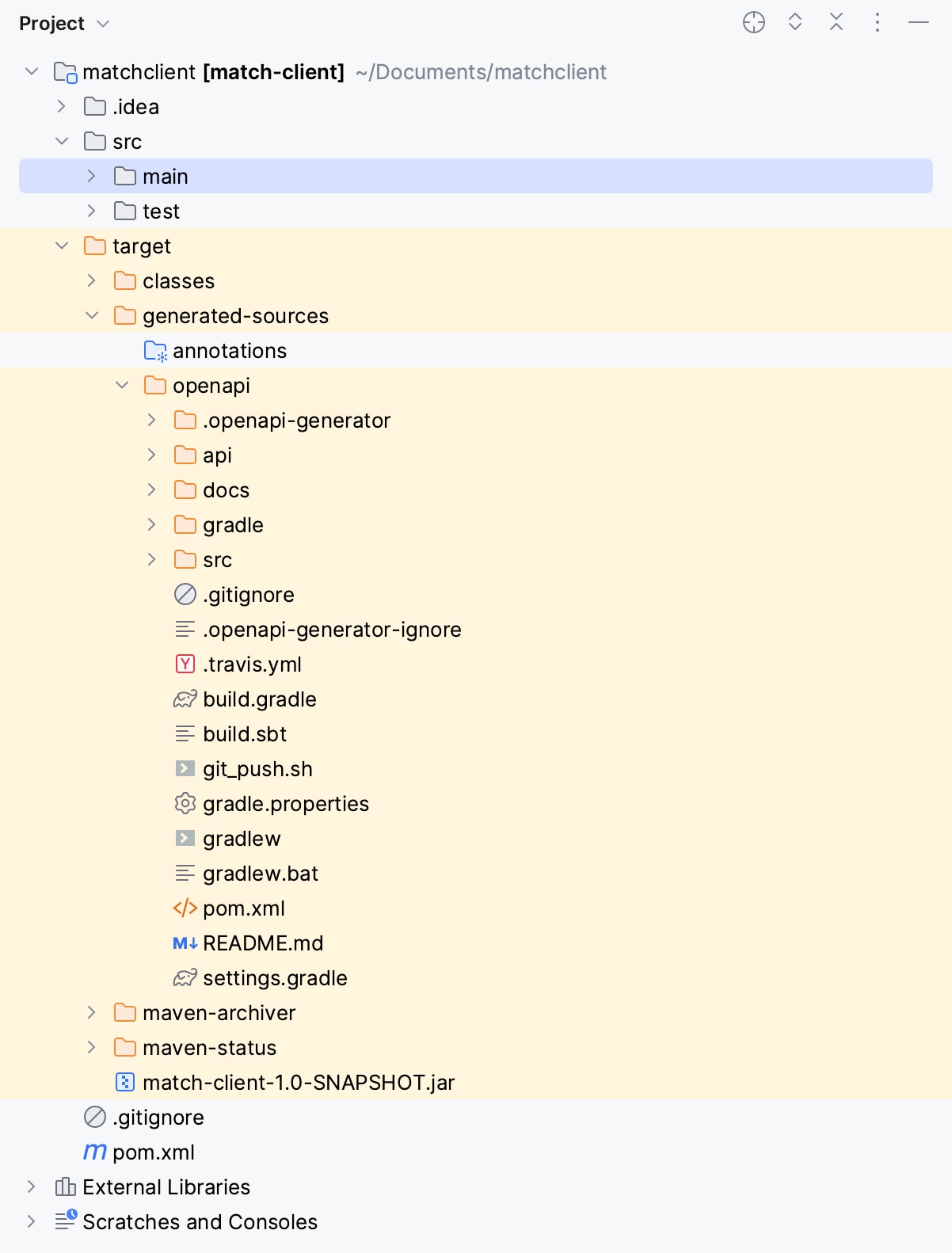
In the same menu, navigate to the commands ({Project name} \> Lifecycle), run clean and then compile. Alternatively, you can navigate to the root directory of the project within a terminal window and run mvn clean compile.

Afterwards, there should be a new folder named target, within your root directory, which contains classes generated for the schemas and API calls defined within the OpenAPI Specification. The generated classes can be found in target folder as shown below.
## Making an API Call {#making-an-api-call}
Create a Java file, called ContactRequestClient.java, at src/main/java/.
To make the API call, you need to make your OAuth credentials available to the program to use:
* Oauth
```Oauth
String consumerKey = "your consumer key";
String signingKeyFilePath = "/path/to/your/key.p12";
String signingKeyAlias = "your key alias";
String signingKeyPassword = "your password";
PrivateKey signingKey = AuthenticationUtils.loadSigningKey(signingKeyFilePath, signingKeyAlias, signingKeyPassword);
```
Afterwards, you instantiate a client that you can set up to sign requests that you send with your authentication credentials.
* Client_Instantiation
```Client_Instantiation
ApiClient client = new ApiClient();
client.setBasePath("https://sandbox.apiedge.mastercard.com/mcp/match/api");
client.setDebugging(true);
client.setReadTimeout(40000);
client.setHttpClient(
client.getHttpClient()
.newBuilder()
.addInterceptor(new OkHttpOAuth1Interceptor(consumerKey, signingKey))
.build()
);
AcquirerContactApi api = new AcquirerContactApi(client);
```
With your environment set up, you can start to build a request. Any nested objects within the Request Body have each been assigned a wrapper class, and so in order to build the request, you will be instantiating multiple objects and ultimately wrapping those with the main request object.
You make the API call and then store the response in a Response object. Once you have the response stored, you have different options, but for this tutorial you can simply use toString to print the response body.
To make it easy to understand, only the snippets needed to make the API call is shown above. The full content of ContactRequestClient.java is shown below.
Note: Well Done! 👏. You have successfully completed the tutorial on how to generate the SDK and connect to the Mastercard Match API in sandbox using the SDK.
## Content of ContactRequestClient.java {#content-of-contactrequestclientjava}
* ContactRequestClient.java
```ContactRequestClient.java
package com.mastercard.test;
import com.mastercard.developer.interceptors.OkHttpOAuth1Interceptor;
import com.mastercard.developer.utils.AuthenticationUtils;
import org.openapitools.client.ApiClient;
import org.openapitools.client.api.AcquirerContactApi;
import org.openapitools.client.model.Contact;
import org.openapitools.client.model.ContactReq;
import org.openapitools.client.model.ContactRes;
import java.security.PrivateKey;
import java.util.List;
public class ContactRequestClient {
public static void main(String[] arguments) throws Exception {
String consumerKey = "your consumer key";
String signingKeyFilePath = "path to your key.p12";
String signingKeyAlias = "your key alias";
String signingKeyPassword = "your key store password";
PrivateKey signingKey = AuthenticationUtils.loadSigningKey(signingKeyFilePath, signingKeyAlias, signingKeyPassword);
ApiClient client = new ApiClient();
client.setBasePath("https://sandbox.apiedge.mastercard.com/mcp/match/api");
client.setDebugging(true);
client.setReadTimeout(40000);
client.setHttpClient(
client.getHttpClient()
.newBuilder()
.addInterceptor(new OkHttpOAuth1Interceptor(consumerKey, signingKey))
.build()
);
AcquirerContactApi api = new AcquirerContactApi(client);
api.setApiClient(client);
List response = api.getContactDetailsByAcquirerId(getContactRequest());api.setApiClient(client);
}
private static ContactReq getContactRequest() {
Contact contact = new Contact();
// Add your AcquirerId to get contact details
contact.setAcquirerId("your AcquirerId");
ContactReq contactReq= new ContactReq();
contactReq.setContactRequest(contact);
return contactReq;
}
}
```
## Go Live {#go-live}
After you have tested your implementation in our Sandbox and MTF environments, it is time to move to [Production.](https://developer.mastercard.com/platform/documentation/getting-started-with-mastercard-apis/quick-start-guide/#go-live)
1. Within your MATCH Pro project, select "Request Production Access"
2. Enter your Key Alias and Keystore Password
3. Save your Key Alias and Keystore Password for future reference
4. (Optional) Upload an existing CSR
5. Confirm and download your Production Keys
Note: Production Keys are generated instantaneously, but they still need to be approved for production environment access before you can go live. Once your production access request has been reviewed, you will receive a notification confirming your access has been approved or denied within 30 days.