# Quick Start Guide
source: https://developer.mastercard.com/match/documentation/quick-start-guide/index.md
## Overview {#overview}
MATCH Pro provides a comprehensive suite of APIs that enable secure, scalable access to merchant risk and compliance data. This tutorial guides you through the onboarding process, authentication setup, and API consumption patterns required to integrate with MATCH Pro services.
Tip: **Postman Collection Quick Start:** If you are already ready to start making calls, you can head over to our [Postman Collection](https://developer.mastercard.com/match/documentation/developer-tools/postman-collection/index.md) page to leverage Sandbox and Production environments without having to write code.
> #### You can follow this guide to learn: {#you-can-follow-this-guide-to-learn}
>
> * How to create a project for the service.
> * How Mastercard Developers approaches authentication.
> * How to generate your credentials and API client.
> * How to get access to Sandbox and Production.
## Pre-requisites {#pre-requisites}
* Create a [Mastercard Developers](https://developer.mastercard.com/) account.
* Have a secure place to store downloaded OAuth keys.
* Decide how you want to test: Postman, Insomnia, the reference application, or your own client.
### Sandbox checklist {#sandbox-checklist}
| # | Step | What to do |
|---|-------------|--------------------------------------------------------------------------------------------------|
| 1 | Access | Get access to MATCH Pro and create your Mastercard Developers project. |
| 2 | Credentials | Generate your Sandbox OAuth credentials and record your consumer key. |
| 3 | First call | Send your first Sandbox request using the Sandbox base URL and OAuth 1.0a signing. |
| 4 | Validation | Use the sample response and Use Cases to validate test data, positive flows, and negative flows. |
| 5 | Production | After Sandbox validation is complete, use Step 5 to request Production access. |
## Step 1: Get access to the API {#step-1-get-access-to-the-api}
1. Navigate to [Mastercard Developers](https://developer.mastercard.com/) and click sign-up and create an account.
2. Activate your account by opening the link sent to your email address, and log in.
3. Open your [My Projects](https://developer.mastercard.com/dashboard) page and start a new project. Sandbox access is open, so you can begin testing as soon as your project credentials are generated.
## Step 2: Create a project and generate Sandbox credentials {#step-2-create-a-project-and-generate-sandbox-credentials}
Create a Mastercard Developers project to generate your Sandbox credentials. Sandbox gives you mocked data so you can validate your integration before requesting Production access.
### Project Details {#project-details}
1. Select **Create new project** on your [My Projects](https://developer.mastercard.com/dashboard) page.
2. Enter a project name.
3. If prompted, indicate whether you are creating the project on behalf of a client.
Note: Check "yes" if you are creating an API integration project for a customer. For example, you could be an integrator, a processor, or a service provider and the customer could be a merchant, issuer, or acquirer.
4. In the **Select at least one API** field, choose **Mastercard Alert To Control High Risk Pro (MATCH Pro)**.

### Service Details {#service-details}
1. Complete the **Service details** form if it displays.
2. Provide the client company name and client company address (if applicable).
### Project Credentials {#project-credentials}
1. In **Project Credentials** , select the **OAuth 1.0** radio button for this OAuth 1.0a service.
2. Download, and keep safe, your PKCS#12 (`.p12`) keystore file.
3. Create a key alias and keystore password for your OAuth keys, record them securely, and click **Proceed**.

4. Download the OAuth 1.0a keys and store them in a safe place. Then click **Open Project**.
5. Once you complete this flow, you will land on the Project page. From the Project page, take note of your consumer key and begin testing.
 Tip: Review information regarding consumer keys and [Credential Management](https://developer.mastercard.com/platform/documentation/credential-management/).
### Save the values that you will need {#save-the-values-that-you-will-need}
On the project dashboard, record the following values:
* Sandbox and Production status
* Authentication consumer key
## Step 3: Setting Up {#step-3-setting-up}
### Pre-requisites {#pre-requisites-1}
To complete this tutorial, you need:
* Maven 3.8
* JDK 11
* Intellij IDEA (or any other IDE of your choice)
* [Mastercard Developers Account](https://developer.mastercard.com) with access to Mastercard Match API.
* Mastercard Match Open API specification (Retrieve by clicking on the expandable section on the Match API) [match-pro.yaml](https://static.developer.mastercard.com/content/match/swagger/match-pro.yaml) (124KB)
* Using [OAuth 1.0a](https://developer.mastercard.com/platform/documentation/using-oauth-1a-to-access-mastercard-apis) to Access Mastercard APIs
* [OpenAPI Generator](https://openapi-generator.tech) to generate jar from yaml file
### Create a Maven Project {#create-a-maven-project}
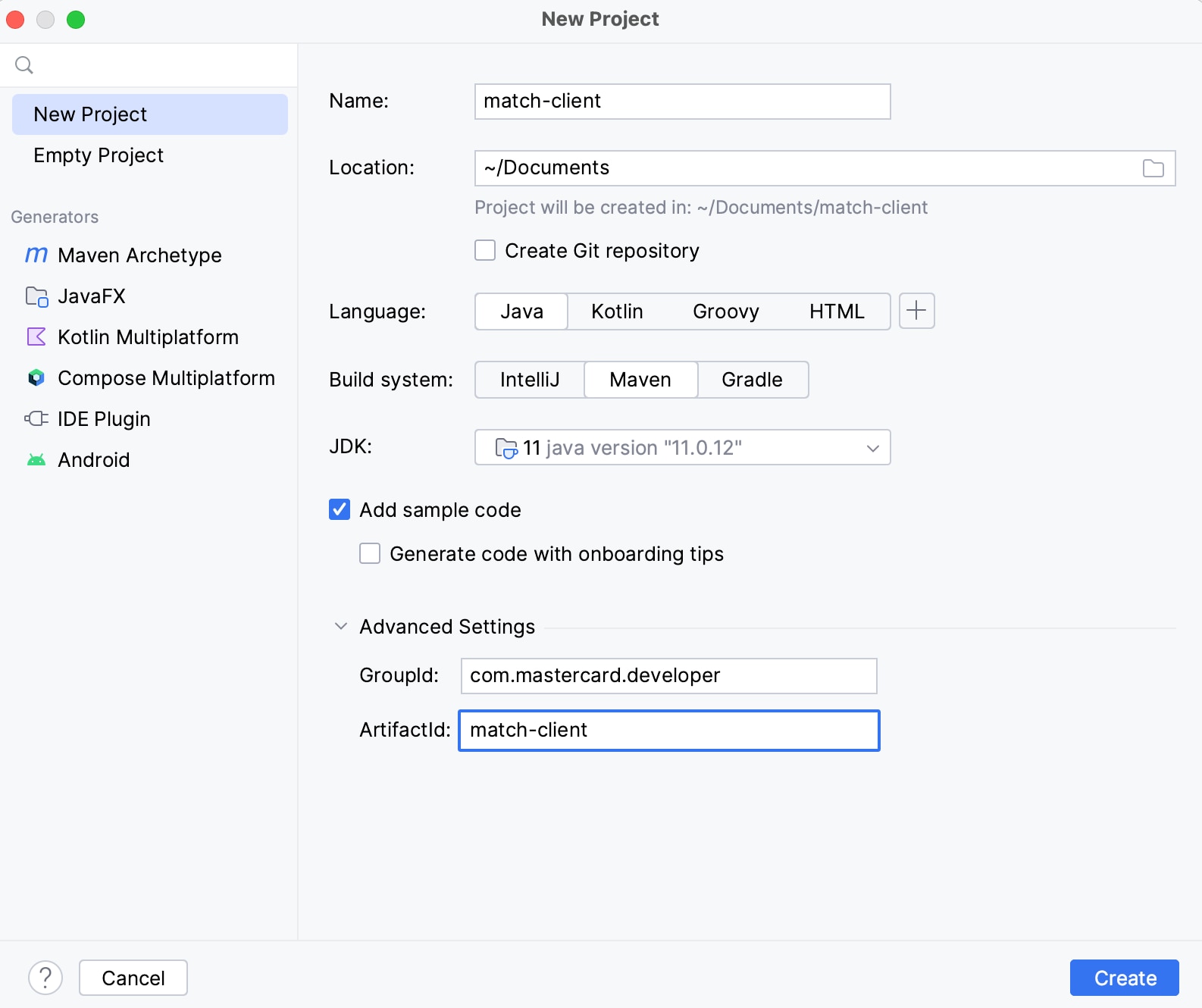
In Intellij IDEA, create a new Maven project, which sets up your directory structure automatically.
Provide ArtifactId and Project name. Here we used the name 'match-client'. See below:
### Add Resources {#add-resources}
1. Add the Mastercard Match API specification to your Maven project's resources folder.(Retrieve by clicking on the expandable section on the Match API)
2. Add the generated p12 file to your Maven project's resources folder. (Generated by creating Sandbox Signing Key within your project in [Mastercard Developers](https://developer.mastercard.com/dashboard)
Your Maven project directory should look as follows:

### Update pom.xml file {#update-pomxml-file}
1. Add the following plugin to your Maven project's pom.xml file to add OpenAPI Generator to your project. OpenAPI Generator generates API client libraries from OpenAPI Specifications (formerly known as Swagger files). OpenAPI Generator provides multiple generators and library templates to support multiple languages and frameworks. You will be using the java generator for this project.
* Plugin
```Plugin
org.openapitools
openapi-generator-maven-plugin
${openapi-generator-version}
Match API REST Client
generate
${project.basedir}/src/main/resources/match-pro.yaml
java
src/gen/java/main
true
```
2. Add the following dependencies to your pom.xml file to add dependencies for the API client library generation and the Mastercard OAuth1 Signer library. Mastercard offers OAuth1 Signer Libraries which offer code helpers targeting the HTTP clients used by the different OpenAPI Generator Library templates. The libraries are hosted here on [Github](https://github.com/Mastercard).
* Dependencies
```Dependencies
11
${java.version}
${java.version}
UTF-8
1.9.0
4.12.0
5.10.2
1.5.3
1.3.2
7.6.0
0.2.6
com.mastercard.developer
oauth1-signer
${oauth1-signer-version}
com.squareup.okhttp3
okhttp
${okhttp-version}
com.squareup.okhttp3
logging-interceptor
${okhttp-version}
io.gsonfire
gson-fire
${gson-fire-version}
javax.annotation
javax.annotation-api
${javax-annotation-api-version}
org.openapitools
openapi-generator
${openapi-generator-version}
org.junit.jupiter
junit-jupiter-api
${junit-version}
compile
org.openapitools
jackson-databind-nullable
${jackson-databind-nullable-version}
```
When using OpenAPI Generator to generate the API client library, you have two options:
* Generate and use the source files on the fly
* Generate and deploy the source files to a Maven repository in this tutorial, you will be generating the API client library on the fly, so you include the dependencies that are needed to generate the library. (If you were deploying the source files to a Maven repository, you would only need to include the dependency for that repository.)
### Generating the API Client SDK {#generating-the-api-client-sdk}
1. **Generate Sources:**
Now that you have all the dependencies you need, you can generate the sources.
In Intellij IDEA, open the window for Maven (View \> Tool Windows \> Maven). Click the icons for Reimport All Maven Projects and Generate Sources and Update Folders for All Projects:

2. **Generate the SDK:**
You should now be ready to generate the API client library.
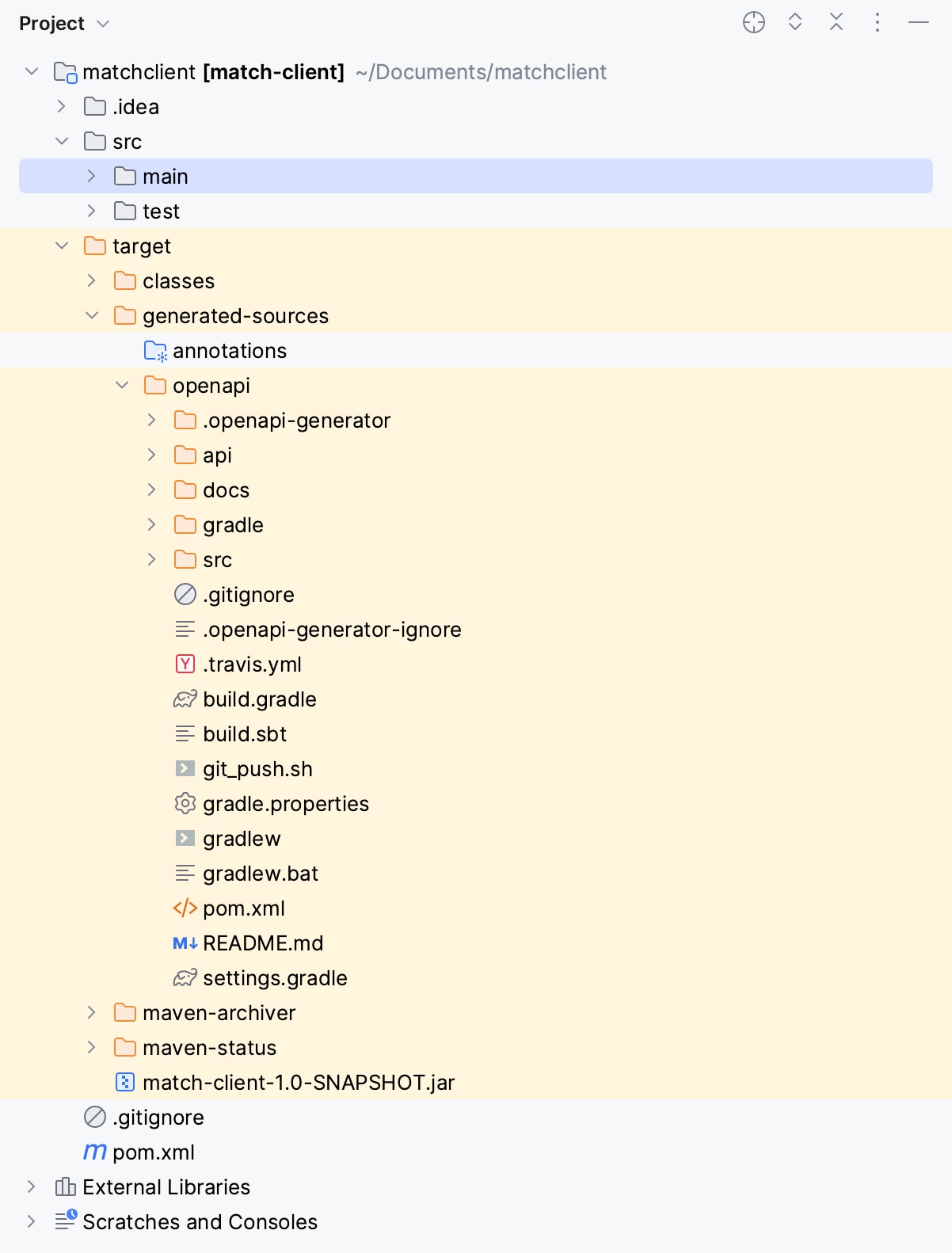
In the same menu, navigate to the commands ({Project name} \> Lifecycle), run clean and then compile. Alternatively, you can navigate to the root directory of the project within a terminal window and run mvn clean compile.

Afterwards, there should be a new folder named target, within your root directory, which contains classes generated for the schemas and API calls defined within the OpenAPI Specification. The generated classes can be found in target folder as shown below.
## Step 4: Making an API Call {#step-4-making-an-api-call}
Create a Java file, called TerminationInquiryClient.java, at src/main/java/.
To make the API call, you need to make your OAuth credentials available to the program to use:
* Oauth
```Oauth
String consumerKey = "your consumer key";
String signingKeyFilePath = "/path/to/your/key.p12";
String signingKeyAlias = "your key alias";
String signingKeyPassword = "your password";
PrivateKey signingKey = AuthenticationUtils.loadSigningKey(signingKeyFilePath, signingKeyAlias, signingKeyPassword);
```
Afterward, you instantiate a client that you can set up to sign requests that you send with your authentication credentials.
* Client_Instantiation
```Client_Instantiation
ApiClient client = new ApiClient();
client.setBasePath("https://sandbox.apiedge.mastercard.com/mcp/match/api");
client.setDebugging(true);
client.setReadTimeout(40000);
client.setHttpClient(
client.getHttpClient()
.newBuilder()
.addInterceptor(new OkHttpOAuth1Interceptor(consumerKey, signingKey))
.build()
);
TerminationInquiryApi api = new TerminationInquiryApi(client);
```
With your environment set up, you can start to build a request. Any nested objects within the Request Body have each been assigned a wrapper class, and so in order to build the request, you will be instantiating multiple objects and ultimately wrapping those with the main request object.
You make the API call and then store the response in a Response object. Once you have the response stored, you have different options, but for this tutorial you can simply use toString to print the response body.
To make it easy to understand, only the snippets needed to make the API call is shown above. The full content of TerminationInquiryClient.java is shown below.
### Content of TerminationInquiryClient.java {#content-of-terminationinquiryclientjava}
* TerminationInquiryClient.java
```TerminationInquiryClient.java
package com.mastercard.developer;
import com.mastercard.developer.interceptors.OkHttpOAuth1Interceptor;
import com.mastercard.developer.utils.AuthenticationUtils;
import org.openapitools.client.ApiClient;
import org.openapitools.client.ApiException;
import org.openapitools.client.api.TerminationInquiryApi;
import org.openapitools.client.model.InquiryPrincipalAddress;
import org.openapitools.client.model.TerminationInquiry;
import org.openapitools.client.model.TerminationInquiryDtl;
import org.openapitools.client.model.TerminationInquiryHistoryRes;
import org.openapitools.client.model.TerminationInquiryMerchant;
import org.openapitools.client.model.TerminationInquiryMerchantAddress;
import org.openapitools.client.model.TerminationInquiryPrincipal;
import org.openapitools.client.model.TerminationInquiryReq;
import java.security.PrivateKey;
import java.util.Arrays;
public class TerminationInquiryClient {
public static void main(String[] args) throws Exception {
String consumerKey = "9PbxCS0C-qd7dB_tFHK0ZMPjDCCNfsix8zGYdXhn598f0a5f!fc261b208bb54c31a9f2bc33f3a618160000000000000000";
String signingKeyFilePath = "C:\\OpenAPI\\match-client\\src\\main\\resources\\Match-Pro-Sandbox-sandbox-signing.p12";
String signingKeyAlias = "keyalias";
String signingKeyPassword = "keypassword@123";
PrivateKey signingKey = AuthenticationUtils.loadSigningKey(signingKeyFilePath, signingKeyAlias, signingKeyPassword);
ApiClient client = new ApiClient();
client.setBasePath("https://sandbox.apiedge.mastercard.com/mcp/match/api");
client.setDebugging(true);
client.setReadTimeout(40000);
client.setHttpClient(
client.getHttpClient()
.newBuilder()
.addInterceptor(new OkHttpOAuth1Interceptor(consumerKey, signingKey))
.build()
);
TerminationInquiryApi api = new TerminationInquiryApi(client);
api.setApiClient(client);
// Create a new termination inquiry
TerminationInquiryDtl createResponse = api.createInquiry(getTerminationInquiry(), null, null, null, null);
System.out.println(createResponse.toString());
// Retrieve inquiry history by reference number
// Replace with an actual inquiry reference number returned from createInquiry
String inquiryRefNum = "REPLACE_WITH_INQUIRY_REF_NUM";
TerminationInquiryHistoryRes historyResponse = api.getInquiryByInquiryRefNum(inquiryRefNum, null, null);
System.out.println(historyResponse.toString());
}
private static TerminationInquiry getTerminationInquiry() {
// Merchant address
TerminationInquiryMerchantAddress merchantAddress = new TerminationInquiryMerchantAddress();
merchantAddress.setAddressLineOne("42 ELM AVENUE");
merchantAddress.setAddressLineTwo("SUITE 201");
merchantAddress.setCity("Fayzabad");
merchantAddress.setIsOtherCity("N");
merchantAddress.setCountrySubdivision("BDS");
merchantAddress.setPostalCode("66579");
merchantAddress.setCountry("AFG");
// Principal address
InquiryPrincipalAddress principalAddress = new InquiryPrincipalAddress();
principalAddress.setAddressLineOne("42 ELM AVENUE");
principalAddress.setAddressLineTwo("SUITE 201");
principalAddress.setCity("Fayzabad");
principalAddress.setIsOtherCity("N");
principalAddress.setCountrySubdivision("BDS");
principalAddress.setPostalCode("66579");
principalAddress.setCountry("AFG");
// Principal
TerminationInquiryPrincipal principal = new TerminationInquiryPrincipal();
principal.setFirstName("DAVID");
principal.setMiddleInitial("P");
principal.setLastName("SMITH");
principal.setAddress(principalAddress);
principal.setPhoneNumber("3165557625");
principal.setAltPhoneNumber("3165557625");
principal.setEmail("Abc@xxx.com");
principal.setDateOfBirth("2021-07-14");
principal.setNationalId("123456-789");
// Merchant
TerminationInquiryMerchant merchant = new TerminationInquiryMerchant();
merchant.setName("THE BAIT SHOP");
merchant.setDoingBusinessAsName("BAIT R US");
merchant.setMerchantId("ABED-1234");
merchant.setSubMerchantId("ABED-1234-1");
merchant.setAddress(merchantAddress);
merchant.setPhoneNumber("3165557625");
merchant.setAltPhoneNumber("3165557625");
merchant.setMerchantCategory("0742");
merchant.setNationalTaxId("NT_123456789/01");
merchant.setCountrySubdivisionTaxId("12345/0001-23");
merchant.setUrls(Arrays.asList("www.merchant.com"));
merchant.setPrincipals(Arrays.asList(principal));
// Request wrapper
TerminationInquiryReq terminationInquiryReq = new TerminationInquiryReq();
terminationInquiryReq.setAcquirerId("1996");
terminationInquiryReq.setMerchant(merchant);
TerminationInquiry terminationInquiry = new TerminationInquiry();
terminationInquiry.setTerminationInquiryRequest(terminationInquiryReq);
return terminationInquiry;
}
}
```
Note: Well Done! 👏. You have successfully completed the tutorial on how to generate the SDK and connect to the Mastercard Match API in sandbox using the SDK.
## Step 5: Integration Testing {#step-5-integration-testing}
After the MTF keys have been configured, test data is loaded and integration testing begins. Your project contact works with you to ensure that sufficient test data is added, and that each endpoint and use case is tested.
## Step 6: Promote to Production {#step-6-promote-to-production}
After you have tested your implementation in our Sandbox and MTF environments, it is time to move to [Production.](https://developer.mastercard.com/platform/documentation/getting-started-with-mastercard-apis/quick-start-guide/#go-live)
1. Within your MATCH Pro project, select "Request Production Access"
2. Enter your Key Alias and Keystore Password
3. Save your Key Alias and Keystore Password for future reference
4. (Optional) Upload an existing CSR
5. Confirm and download your Production Keys
Note: Production Keys are generated instantaneously, but they still need to be approved for production environment access before you can go live. Once your production access request has been reviewed, you will receive a notification confirming your access has been approved or denied within 30 days.
For further assistance, please contact us on technical support - [Get Help](https://developer.mastercard.com/match/documentation/support/index.md#get-help).
## Next Steps {#next-steps}
Continue with the next section:
* [API Reference](https://developer.mastercard.com/match/documentation/api-reference/index.md) for endpoint details and request/response schemas.