# Branding
source: https://developer.mastercard.com/masterpass-merchant-integration-v7/documentation/branding/index.md
## Masterpass Button and Mark {#masterpass-button-and-mark}
Details for integrating the Masterpass Button URLs and Masterpass Mark URLs can be found in this section.
* Merchants, Service Providers, and Developers seeking to integrate Masterpass branding in their checkout environments should refer to the [Masterpass Branding Requirements.](https://developer.mastercard.com/masterpass-merchant-integration-v7/documentation/branding/masterpass-branding-requirements/index.md).
* Merchants, Services Providers, and Developers integrating with Masterpass are required to link URLs for Masterpass Buttons (Standard Button and Dynamic Button), Masterpass Marks, and 'Learn More' links. For a list of the URLs for all of Masterpass's supported languages, see [Masterpass Digital Assets](https://developer.mastercard.com/masterpass-merchant-integration-v7/documentation/branding/masterpass-digital-assets/index.md).
### Masterpass Button {#masterpass-button}
The Masterpass Button is available only in full color and always on a black background. It is available in a standard size and in a range of extended sizes to accommodate a longer horizontal footprint. See [Masterpass Digital Assets](https://developer.mastercard.com/masterpass-merchant-integration-v7/documentation/branding/masterpass-digital-assets/index.md) for all sizes supported in SVG format via URLs. Also, refer to the [Masterpass Branding Requirements](https://developer.mastercard.com/masterpass-merchant-integration-v7/documentation/branding/masterpass-branding-requirements/index.md) for more information.

#### Masterpass Button Example {#masterpass-button-example}
The following is an example of how a merchant site/app can include the Masterpass Button.
* HTML
```HTML
 ```
### Masterpass Dynamic Button {#masterpass-dynamic-button}
As part of the product redesign, Masterpass is introducing a new button design, along with an ability to display a personalized, co-branded Dynamic Button. The Dynamic Button appears when a qualifying consumer action (such as checkout, registration, or marketing) is taken on a previously used wallet that supports this feature.
The Dynamic Button capability is currently available to select wallet providers, and merchants integrating to any of the URLs for displaying the Masterpass Button. Integrating with the latest URLs will ensure your page is compatible with the Dynamic Button. For detailed information on testing the Dynamic Button, see [Masterpass Sandbox Testing Guidelines](https://developer.mastercard.com/masterpass-merchant-integration-v7/documentation/masterpass-sandbox-testing-guidelines/index.md).

### Masterpass Mark {#masterpass-mark}
Masterpass is simplifying how merchants can integrate to the Mark URLs. As of June 2017, the Mark URLs will no longer be dimension specific. Merchants and service providers will be able to use the URLs in [Masterpass Digital Assets](https://developer.mastercard.com/masterpass-merchant-integration-v7/documentation/branding/masterpass-digital-assets/index.md), which will support responsive design enabled via SVG format. Merchants can specify the width and height of the asset within their site code/app while linking to these URLs.
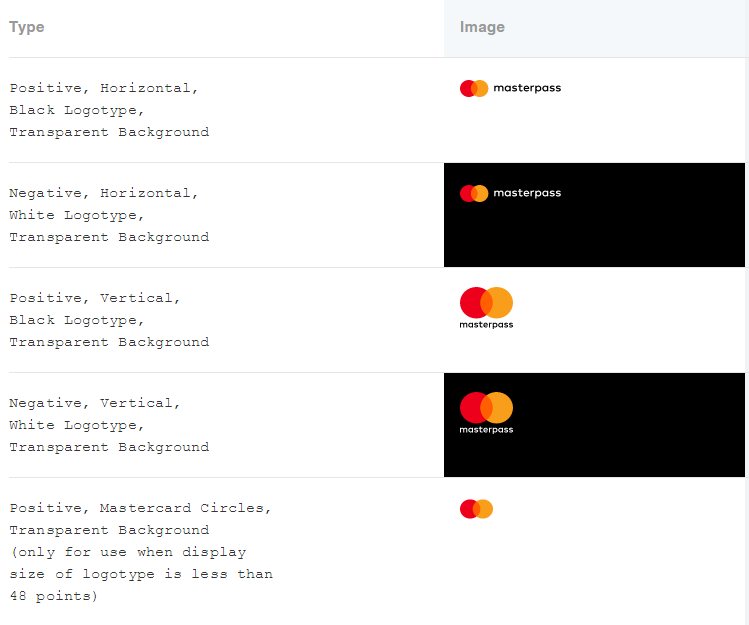
Additionally, the Mark is now available in both horizontal and vertical configurations; and is also available in "Positive" (for use on white / light backgrounds) and "Reverse" (for use on black / dark backgrounds), with both versions having transparent backgrounds. In case the Mark is used on a user interface where the display size of the logotype is less than 48 points wide, then logotype can be omitted and just the Mastercard Circles can be used. Refer to the branding requirements here [Masterpass Branding Requirements](https://developer.mastercard.com/masterpass-merchant-integration-v7/documentation/branding/masterpass-branding-requirements/index.md) for further details, also you can find the URLs here [Masterpass Digital Assets](https://developer.mastercard.com/masterpass-merchant-integration-v7/documentation/branding/masterpass-digital-assets/index.md) .
#### Masterpass Mark Example {#masterpass-mark-example}
The following is an example of how a merchant site/app can include the Masterpass Mark.
* HTML
* CSS
```HTML
```
### Masterpass Dynamic Button {#masterpass-dynamic-button}
As part of the product redesign, Masterpass is introducing a new button design, along with an ability to display a personalized, co-branded Dynamic Button. The Dynamic Button appears when a qualifying consumer action (such as checkout, registration, or marketing) is taken on a previously used wallet that supports this feature.
The Dynamic Button capability is currently available to select wallet providers, and merchants integrating to any of the URLs for displaying the Masterpass Button. Integrating with the latest URLs will ensure your page is compatible with the Dynamic Button. For detailed information on testing the Dynamic Button, see [Masterpass Sandbox Testing Guidelines](https://developer.mastercard.com/masterpass-merchant-integration-v7/documentation/masterpass-sandbox-testing-guidelines/index.md).

### Masterpass Mark {#masterpass-mark}
Masterpass is simplifying how merchants can integrate to the Mark URLs. As of June 2017, the Mark URLs will no longer be dimension specific. Merchants and service providers will be able to use the URLs in [Masterpass Digital Assets](https://developer.mastercard.com/masterpass-merchant-integration-v7/documentation/branding/masterpass-digital-assets/index.md), which will support responsive design enabled via SVG format. Merchants can specify the width and height of the asset within their site code/app while linking to these URLs.
Additionally, the Mark is now available in both horizontal and vertical configurations; and is also available in "Positive" (for use on white / light backgrounds) and "Reverse" (for use on black / dark backgrounds), with both versions having transparent backgrounds. In case the Mark is used on a user interface where the display size of the logotype is less than 48 points wide, then logotype can be omitted and just the Mastercard Circles can be used. Refer to the branding requirements here [Masterpass Branding Requirements](https://developer.mastercard.com/masterpass-merchant-integration-v7/documentation/branding/masterpass-branding-requirements/index.md) for further details, also you can find the URLs here [Masterpass Digital Assets](https://developer.mastercard.com/masterpass-merchant-integration-v7/documentation/branding/masterpass-digital-assets/index.md) .

#### Masterpass Mark Example {#masterpass-mark-example}
The following is an example of how a merchant site/app can include the Masterpass Mark.
* HTML
* CSS
```HTML
 ```
```CSS
.svg-masterpass-mark {
width: 125px;
height: 105px;
}
```
The Masterpass Mark URLs are available from the [Masterpass Digital Assets](https://developer.mastercard.com/masterpass-merchant-integration-v7/documentation/branding/masterpass-digital-assets/index.md) page. Also, refer to the [Masterpass Branding Requirements](https://developer.mastercard.com/masterpass-merchant-integration-v7/documentation/branding/masterpass-branding-requirements/index.md)page.
## Pairing Display {#pairing-display}
The pairing display allows the merchant to give consumers the option to connect their wallet outside of checkout to enable a streamlined checkout experience. This flow is available to merchants using Masterpass express checkout.
The merchant should use the Masterpass Button to initiate this flow. Alternatively, the merchant can also use the Masterpass Mark when the brand is presented within a button. A merchant may place this button anywhere on the site except on checkout pages or pages where payment is initiated.
Note: Downloading and locally hosting the Masterpass Button, Mark, and Learn More Links is against Masterpass integration guidelines. To minimize the impact of future branding updates, use the country-specific link (indicated above) to the images on the checkout page.
## Masterpass "Learn More" Page {#masterpass-learn-more-page}
In addition to the Masterpass Button and Masterpass Mark, Masterpass also requires merchants/service providers to provide a link to a "Learn More" page which can be used by the consumers to get additional information about Masterpass.
It is recommended that you place the link in close proximity to the Masterpass Button.

The **Learn More** link is available for different countries in multiple languages and can be accessed from [Masterpass Digital Assets](https://developer.mastercard.com/masterpass-merchant-integration-v7/documentation/branding/masterpass-digital-assets/index.md). Also refer to the [Masterpass Branding Requirements](https://developer.mastercard.com/masterpass-merchant-integration-v7/documentation/branding/masterpass-branding-requirements/index.md) page.
```
```CSS
.svg-masterpass-mark {
width: 125px;
height: 105px;
}
```
The Masterpass Mark URLs are available from the [Masterpass Digital Assets](https://developer.mastercard.com/masterpass-merchant-integration-v7/documentation/branding/masterpass-digital-assets/index.md) page. Also, refer to the [Masterpass Branding Requirements](https://developer.mastercard.com/masterpass-merchant-integration-v7/documentation/branding/masterpass-branding-requirements/index.md)page.
## Pairing Display {#pairing-display}
The pairing display allows the merchant to give consumers the option to connect their wallet outside of checkout to enable a streamlined checkout experience. This flow is available to merchants using Masterpass express checkout.
The merchant should use the Masterpass Button to initiate this flow. Alternatively, the merchant can also use the Masterpass Mark when the brand is presented within a button. A merchant may place this button anywhere on the site except on checkout pages or pages where payment is initiated.
Note: Downloading and locally hosting the Masterpass Button, Mark, and Learn More Links is against Masterpass integration guidelines. To minimize the impact of future branding updates, use the country-specific link (indicated above) to the images on the checkout page.
## Masterpass "Learn More" Page {#masterpass-learn-more-page}
In addition to the Masterpass Button and Masterpass Mark, Masterpass also requires merchants/service providers to provide a link to a "Learn More" page which can be used by the consumers to get additional information about Masterpass.
It is recommended that you place the link in close proximity to the Masterpass Button.

The **Learn More** link is available for different countries in multiple languages and can be accessed from [Masterpass Digital Assets](https://developer.mastercard.com/masterpass-merchant-integration-v7/documentation/branding/masterpass-digital-assets/index.md). Also refer to the [Masterpass Branding Requirements](https://developer.mastercard.com/masterpass-merchant-integration-v7/documentation/branding/masterpass-branding-requirements/index.md) page.