# Add Payload Encryption Key
source: https://developer.mastercard.com/mastercard-checkout-solutions/tutorial/key-management/add-encryption-key/index.md
## 2. Add Payload Encryption Key {#2-add-payload-encryption-key}
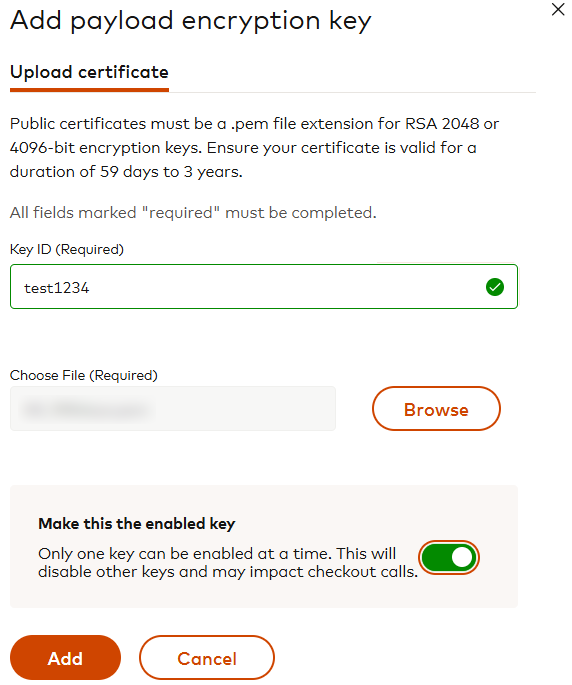
Payload Encryption involves 2048-bit or 4096-bit RSA public/private key pairs. Upload the public certificate (PEM format) generated as a part of the key pair in your own system. The encryption key should be unique. Ensure the encryption certificate you upload corresponds to a private key that has not been used before in this project.
Tip: The Encryption Key is auto-generated in Sandbox (Mastercard Checkout Solutions - Sandbox). It is advisable to start with the auto-generated keys in the Sandbox before proceeding to adding your keys in the Production environment.
1. Access the Mastercard Checkout Solutions onboarding application on Mastercard Connect.
2. Navigate to **Key Management** tab.
3. Click **Add Key** in the Encryption Key section.
4. Provide the Key ID and ensure your Key ID is unique. You cannot use a previously used Key ID([KID](https://developer.mastercard.com/mastercard-checkout-solutions/tutorial/key-management/manage-keys/index.md#key-metadata)).
5. Browse and select the encryption certificate and click **Add Key** . Learn how to [create an encryption certificate](https://developer.mastercard.com/mastercard-checkout-solutions/tutorial/key-management/add-encryption-key/index.md#create-a-private-key-and-public-certificate).
Note: You can add up to three encryption keys in a project where only one can be active/enabled at a time. If three encryption keys already exist, use "Revoke Key" to remove one of these existing encryption keys to add a new one.
### Create a private key and public certificate {#create-a-private-key-and-public-certificate}
Use the following command to create a private key and public certificate:
* OpenSSL
$ ls cacert.pem cakey.pem readme.txt "\>
```OpenSSL
$ openssl req -newkey rsa:2048 -x509 -keyout cakey.pem -out cacert.pem -days 365
Generating a RSA private key
.+++++
..+++++
writing new private key to 'cakey.pem'
Enter PEM pass phrase:
Verifying - Enter PEM pass phrase:
### You are about to be asked to enter information that will be incorporated
into your certificate request.
What you are about to enter is what is called a Distinguished Name or a DN.
There are quite a few fields but you can leave some blank
For some fields there will be a default value,
If you enter '.', the field will be left blank. {#if-you-enter-3939-the-field-will-be-left-blank}
Country Name (2 letter code) [AU]:
State or Province Name (full name) [Some-State]:
Locality Name (eg, city) []:
Organization Name (eg, company) [Internet Widgits Pty Ltd]:
Organizational Unit Name (eg, section) []:
Common Name (e.g. server FQDN or YOUR name) []:
Email Address []:
`$ ls
cacert.pem cakey.pem readme.txt
`
```
The Common Name (CN) is a required field, which should be the FQDN (Fully Qualified Domain Name) of the server or the host where you intend to use the certificate.
In the above command :
* `req` option means you are creating a Certificate Request (pkcs10)
* `-newkey rsa:2048` means you are generating a new RSA key of 2048 bits in size
* `-x509` means you are outputting a x509 structure instead of a cert req
* `-keyout cakey.pem` is the private key
* `-out cacert.pem` is the public certificate
* `-days 365` is number of days a certificate generated by -x509 is valid for. Ensure the key expiration time is included when creating your encryption key pair, and the expiration date should be within 59 days to 3 years.