# Recognized User
source: https://developer.mastercard.com/mastercard-checkout-solutions/documentation/use-cases/click-to-pay/returninguser_recognized/index.md
Integrators can offer Click to Pay as a payment option in a consumer's shopping experience by recognizing the consumer by a cookie or a recognition token in their browser.
A [recognition token](https://developer.mastercard.com/mastercard-checkout-solutions/documentation/support/index.md#click-to-pay) is an alternate way to recognize cardholders in Click to Pay checkout. Integrators can use these tokens, alongside third-party cookies.
On recognizing the consumer on the merchant site, the Integrator should directly display a list of cards linked to the consumer's Click to Pay profile on the merchant's product, shopping cart or checkout page. Consumers can simply select a card to pay in a password-free experience.
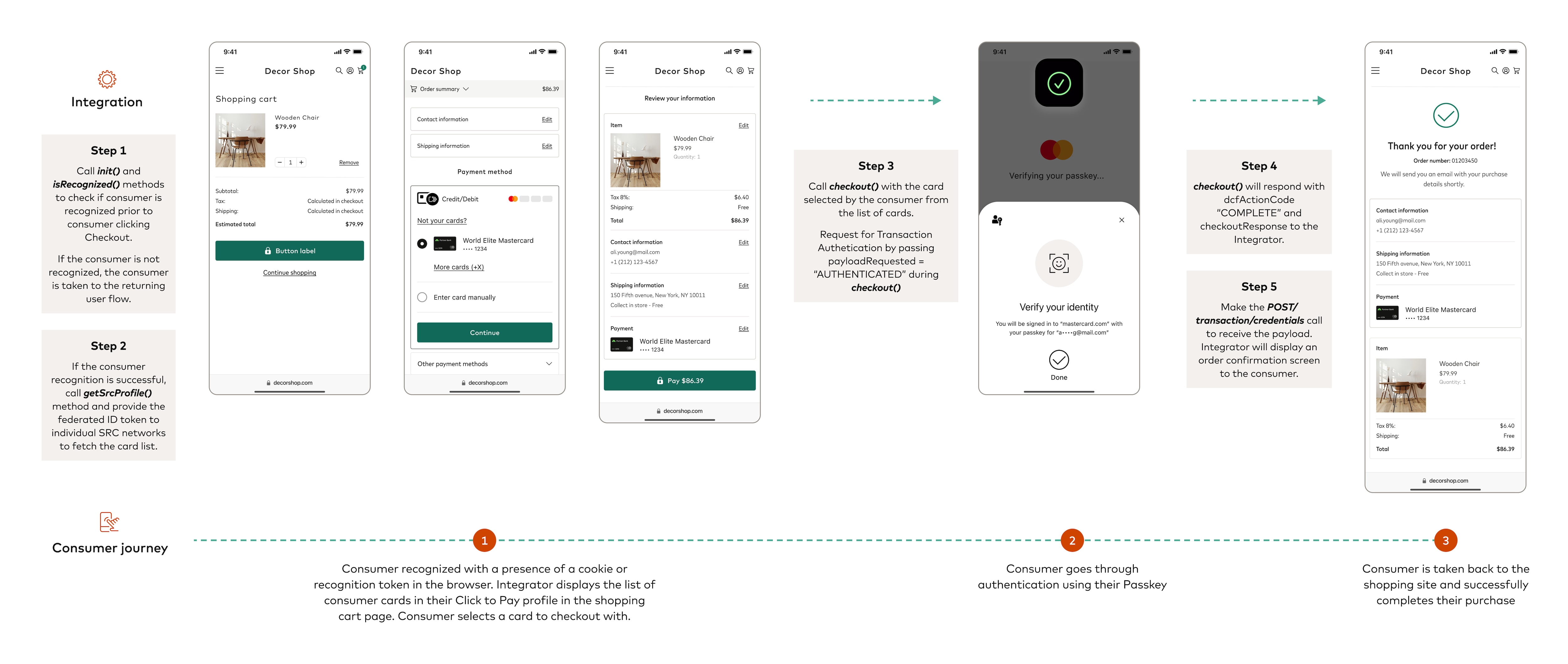
The following steps break down the checkout experience for a returning user, recognized by Mastercard Click to Pay. The Integrator may display cards within a widget that renders inside of the merchant's checkout, product or shopping cart page.
Integrator must perform the following actions after [setting up the JavaScript library](https://developer.mastercard.com/mastercard-checkout-solutions/tutorial/integrate_apis/step2/index.md).
## Step 1: Initialize the SDK and Check if a Consumer is Recognized {#step-1-initialize-the-sdk-and-check-if-a-consumer-is-recognized}
1. DPA (Digital Payment Application) interacts with the Integrator(SRCI). Integrator invokes the JS methods listed below.
2. If you've already [initialized the JS Library](https://developer.mastercard.com/mastercard-checkout-solutions/tutorial/integrate_apis/step3/index.md), directly call the [isRecognized()](https://developer.mastercard.com/mastercard-checkout-solutions/documentation/sdk-reference/is-recognized/index.md) method of each participating SRC network in Click to Pay.
3. The [isRecognized()](https://developer.mastercard.com/mastercard-checkout-solutions/documentation/sdk-reference/is-recognized/index.md) method checks if the consumer is recognized by any of the participating SRC networks.
4. If the consumer is recognized by the presence of a cookie or a recognition token, the [Federated ID token](https://developer.mastercard.com/mastercard-checkout-solutions/documentation/sdk-reference/is-recognized/index.md#id-token) is returned.
Diagram repeateduser_samedevice_init_isrecognized_2
## Step 2: Get Consumer's Profile {#step-2-get-consumers-profile}
1. Call the [getSrcProfile()](https://developer.mastercard.com/mastercard-checkout-solutions/documentation/sdk-reference/get-src-profile/index.md) method. Provide the [federated ID token](https://developer.mastercard.com/mastercard-checkout-solutions/documentation/sdk-reference/is-recognized/index.md#id-token) in the method request to all the participating SRC networks to fetch the card list.
2. The [getSrcProfile()](https://developer.mastercard.com/mastercard-checkout-solutions/documentation/sdk-reference/get-src-profile/index.md) method takes the list of [federated ID(idTokens)](https://developer.mastercard.com/mastercard-checkout-solutions/documentation/sdk-reference/is-recognized/index.md#id-token) and returns Click to Pay profile data to the Integrator along with the `srcCorrelationId`. Where required, the same `srcCorrelationId` must be used in the JS method/API calls for that transaction to link the calls together.
Diagram repeateduser_samedevice_getconsumerprofile_2 Note: It is a good practice to review the [UI guide](https://developer.mastercard.com/mastercard-checkout-solutions/tutorial/returninguser_recognized_ui/index.md) which contains the Best Practices and UX recommendations.
## Step 3: Checkout {#step-3-checkout}
1. Display the list of cards and different payment options for the customer to choose from. If only one card is available in the profile, the next step is skipped and network specific DCF (Digital Card Facilitator) is launched.
2. Consumer selects a card, clicks **Continue** , reviews the details and clicks **Pay**.
3. Integrator will use the `maskedcard` and `srcCorrelationId` and call the [checkout()](https://developer.mastercard.com/mastercard-checkout-solutions/documentation/sdk-reference/checkout-method/index.md) method of the JS Library which will load the network specific DCF. Choose from one of the following:
If you have opted into Mastercard Installments Services and the consumer selects a card that has installment plans available, then a list of installment plans display in the loading screen. The consumer may select an installment plan from the list or may defer to the standard 'payment in full' option.
For more information, see [Mastercard Installments Services](https://developer.mastercard.com/mastercard-checkout-solutions/documentation/use-cases/click-to-pay/value-added-services/installments-services/index.md). Opt for Transaction Authentication by passing `payloadRequested` = 'AUTHENTICATED' under [authenticationPreferences](https://developer.mastercard.com/mastercard-checkout-solutions/documentation/sdk-reference/common-objects/index.md#authentication-preferences). Open a center-aligned pop-up (new window) and pass the `windowRef` to Mastercard. If opted, the user will go through the passkey-based authentication to verify the transaction.
* Read the Transaction Authentication [use cases](https://developer.mastercard.com/mastercard-checkout-solutions/documentation/token-authentication/click-to-pay/use-case1/index.md).
* Follow the integration steps in the [tutorial](https://developer.mastercard.com/mastercard-checkout-solutions/tutorial/integrate_apis/step5/index.md).
* Depending on the values set in `com.mastercard.dcfExperience` in [customInputData](https://developer.mastercard.com/mastercard-checkout-solutions/documentation/sdk-reference/common-objects/index.md#custom-input-data) object, either a DCF screen, or a loading screen will show up.
* When calling the [checkout()](https://developer.mastercard.com/mastercard-checkout-solutions/documentation/sdk-reference/checkout-method/index.md) method, pass [consumer](https://developer.mastercard.com/mastercard-checkout-solutions/documentation/sdk-reference/common-objects/index.md#consumer) information in the DCF screen without the need for the consumer to re-enter the same details.
* When the required address fields are not set, Click to Pay system collects this information from the payload and prompts user to **Confirm** on a DCF before completing the checkout. The values in the [customInputData](https://developer.mastercard.com/mastercard-checkout-solutions/documentation/sdk-reference/common-objects/index.md#custom-input-data) parameter handle this.
4. Choose from one of the following options to receive the full payload in the [checkout()](https://developer.mastercard.com/mastercard-checkout-solutions/documentation/sdk-reference/checkout-method/index.md) response or not:
### Receive full payload in checkout() method {#receive-full-payload-in-checkout-method}
`payloadTypeIndicatorCheckout` is set to `FULL`.
* Receive a full payload contained in the `payload` object.
* Decrypt the payload using the private key from the [Payload Encryption public/private key pair](https://developer.mastercard.com/mastercard-checkout-solutions/tutorial/key-management/index.md) and send the decrypted payload for authorization.
* Call the [Confirmations API](https://developer.mastercard.com/mastercard-checkout-solutions/documentation/api-reference/apis/index.md#confirmations) to record the result of the transaction.
### Receive full payload in Checkout API {#receive-full-payload-in-checkout-api}
`payloadTypeIndicatorCheckout` is set to `SUMMARY`. This is the default value if not provided by Integrator.
* Receive the masked card and masked consumer information in `checkoutResponse`.
* Call the [Checkout API](https://developer.mastercard.com/mastercard-checkout-solutions/documentation/api-reference/apis/index.md#checkout) to receive the full payload.
5. Cardholder confirms the payment and once the transaction is authenticated the order gets placed.
* If the consumer clicks "**Not you?** ", the action will exit the DCF screen and unbind the consumer from this device. The DCF will communicate to the Integrator a `dcfActionCode` of `SWITCH_CONSUMER`, along with `unbindAppInstance` set to `true`, and the `idToken` of the current profile. Based on the response from DCF, the Integrator calls [unbindAppInstance()](https://developer.mastercard.com/mastercard-checkout-solutions/documentation/sdk-reference/unbind-app/index.md) for each SRC network.
6. DCF will respond to the [checkout()](https://developer.mastercard.com/mastercard-checkout-solutions/documentation/sdk-reference/checkout-method/index.md) method with `dcfActionCode = COMPLETE` and the `checkoutResponse` to the Integrator.
Note: Refer to the various DCF Fall Back Scenarios [here](https://developer.mastercard.com/mastercard-checkout-solutions/tutorial/returninguser_recognized_ui/index.md) which contains the Best Practices and UX recommendations. Diagram repeateduser_samedevice_checkout2-TAS
## Step 4: Fetch and Decrypt Payload {#step-4-fetch-and-decrypt-payload}
1. Use the [POST /transactions/credentials](https://developer.mastercard.com/mastercard-checkout-solutions/documentation/api-reference/apis/index.md#checkout) API call to retrieve the transaction payload from Mastercard Click to Pay.
2. The response contains `encryptedPayload` object within the `checkoutResponseJWS` (a JWE in compact serializable form). The JWE content is signed and encrypted using the public part of the **Payload Encryption** key shared by the client at the time of onboarding. Example of an encryptedPayload object:
"eyJlbmMiOiJBMTI4Q0JDLUhTMjU2IiwiYWxnIjoiUlNBLU9BRVAtMjU2In0.MIq_v15_eowvwX8MRgrb_H1EevZKB9CZSMMD8-lcbTjQvPFwAyx1USZbZRDB3RGfA_of6aDggnbmQmgsUStPQEpzYMma5mxlv5-VT6ry94xyttBFuCjBV0hudmcOEHiQeIiwS5xBb1iBPFaXTEmMpgDv8lvAm_ncbJ0V5FFDUYYVhK0-SbaODY5OKMdP2N3Y9bCkqjLCAcmkkN3mkrJ6WbzJURmNdfPyL344Cxc14NLZW3fk_yHkmjXybIXJWnUUsdxwFWS5ImwaZGEhbeLGGdpsPTkTkwD86uZCYJlx_dsZi02Vbm9AIiPpKE4L8GS_ltmOQ3YfgfxS6UuzYzaxKw.Xi3KLm7BvjSQuPMSVwSepg.U6Yp-DXd55F6jqy8-LIbmxmExzLaZNCF9Rcmg0g7ViUN3ydm_G5IqJmCFgXg1aO50HYJvnxi5OWG_rs6uV-1I2rrpu3bkuSjkj03N82yhFJBbhr8W_ahlgAMv2FPu4k7aeGp5rWm5lEdvH2UpSvKG2Ae111iFtL842Pk0pgPLOv4jnxFaCrvAPZ4vTvHS1RU27XGW7qXfAOtqpZ38oUJFamYueCIycDrsvacPT650O_JM_QS0ReXkH49bgAt1Sog9r2PY7fjU22ff1oGno51uVK_D9EXyHWcD4I5LYdVd6NenPDfycuQZ_wA98nqMCTzrqx5yQjUQDNYOoDF8ztoKVpYsTJeIUcFTpGXfoLLPTWjoIUds3mIyrXtBWO46rqN8c2nQ6FKC04-CBK9RGbWr1q1ENgfmsBvfXPCIUZ5ACzM1UaU2LkgEYlyiaxn-I3MfauP1adsA3ZOhrDHwSNgA0aVejT_9OTOaBUmywKGtdD7E8PhP7JqbMTXH2gM_9xU7t7TRvntE5uXeALKv4EDurn0p5bASwsYie7xWbsMHGF8lN0aGqJhNKiHL_NFGnR0wzPWS3UXFP7wZFbLM9qSPw.XFMSREEcssFqUM5kIwChIA"
3. Decrypt the payload using the private key from the **Payload Encryption** public/private key pair. Refer to [API Keys](https://developer.mastercard.com/mastercard-checkout-solutions/tutorial/key-management/index.md) for details.
Note: If the Integrator opts for transaction authentication during the checkout method, they will receive authenticated payload. [Learn more](https://developer.mastercard.com/mastercard-checkout-solutions/tutorial/integrate_apis/step5/index.md).
Diagram fetchtransactioncreds_2_TAS
## Step 5: View the Decrypted Payload {#step-5-view-the-decrypted-payload}
1. When the `encryptedPayload` field is decrypted, you will see a JSON object containing transaction information.
2. Mastercard returns the payload in the most secure format possible and in accordance with the `DpaTransactionOptions.PaymentOptions.dynamicDataType` parameter passed in the [JavaScript Request](https://developer.mastercard.com/mastercard-checkout-solutions/documentation/sdk-reference/common-objects/index.md#payment-options) ([checkout()](https://developer.mastercard.com/mastercard-checkout-solutions/documentation/sdk-reference/checkout-method/index.md) or [init()](https://developer.mastercard.com/mastercard-checkout-solutions/documentation/sdk-reference/init/index.md) methods). The values in [dynamicDataType](https://developer.mastercard.com/mastercard-checkout-solutions/documentation/sdk-reference/common-objects/index.md#payment-options) (`CARD_APPLICATION_SHORT_FORM`, `NONE`) derive the payload format returned by Mastercard. Refer to this [tutorial](https://developer.mastercard.com/mastercard-checkout-solutions/tutorial/integrate_apis/step8/index.md) to learn more about the different payload formats.
Diagram encryption_decryption Note: This information is related to Mastercard. For other networks, contact your PSP or Acquirer.
## Step 6: Payment Authorization {#step-6-payment-authorization}
Note: The API specification does not define requirements for transaction authorization. For more information about DSRP transactions, refer to:
* [DSRP --- Acquirer Implementation Guide](https://trc-techresource.mastercard.com/r/bundle/m_an5843/page/z/ndg1634167211641.html)
* [AN3363 --- Mandatory Use of Digital Payment Data Field for Remote Commerce Transactions with Cryptograms](https://trc-techresource.mastercard.com/r/bundle/m_an3363_en-us/page/d/en-US/jvw1585260985294.html)
1. When the consumer submits the order, the Integrator sends the decrypted payload for authorization to Mastercard Checkout Solutions.
2. For tokenized transactions, the response payload fields are passed in a Payment Authorization. For more details, refer to the [tutorial](https://developer.mastercard.com/mastercard-checkout-solutions/tutorial/integrate_apis/step8/index.md).
## Step 7: Send Confirmation {#step-7-send-confirmation}
1. Using [POST /confirmations](https://developer.mastercard.com/mastercard-checkout-solutions/documentation/api-reference/apis/index.md#confirmations) API, make the confirmations request to the Mastercard Checkout Solutions to record the result of the transaction. This call must be made irrespective of the transaction status.
Diagram paymentauthandconfirmation_2
Mastercard recommends the integrator to send the Confirmation API calls for the below scenarios:
* Payload is received but no authorization is submitted.
* Payload is received and authorization is successfully completed.
* Order cancellation is submitted after successful authorization.
* When payload is received and authorization was declined.
* Refund is submitted.
| Merchant Action | Events for an order | Merchant Order Status | Confirmation API checkoutEventType | Confirmation API checkoutEventStatus |
|----------------------------|-------------------------------------------------|-----------------------|------------------------------------|--------------------------------------|
| No Authorization Submitted | Authorization will be submitted at a later time | Created | 01 - Authorize | 01 - Created |
| Authorization Submitted | Approval Code received | Approved | 01 - Authorize | 02 - Confirmed |
| Authorization Submitted | Order Cancelled -- reversal submitted | Cancelled | 04 - Cancel | 03 - Cancelled |
| Authorization Submitted | No Approval Code received | Cancelled | 01 - Authorize | 03 - Cancelled |
| Refund | Refund is processed | Refund | 03 - Refund | 02 - Confirmed |