# iOS Implementation
source: https://developer.mastercard.com/mastercard-checkout-solutions/documentation/token-authentication/tas_scof/mobile_integration/ios/index.md
The mobile app must invoke the **Safari Browser App** and display Integrator's web URL with a call-to-action (CTA) button when the consumer initiates checkout on their iOS mobile app. The CTA button will trigger the Mastercard Authentication UI for passkey enrollment and authentication.
The following representation shows the consumer's passkey authentication during checkout on merchant's mobile app in their iOS device.
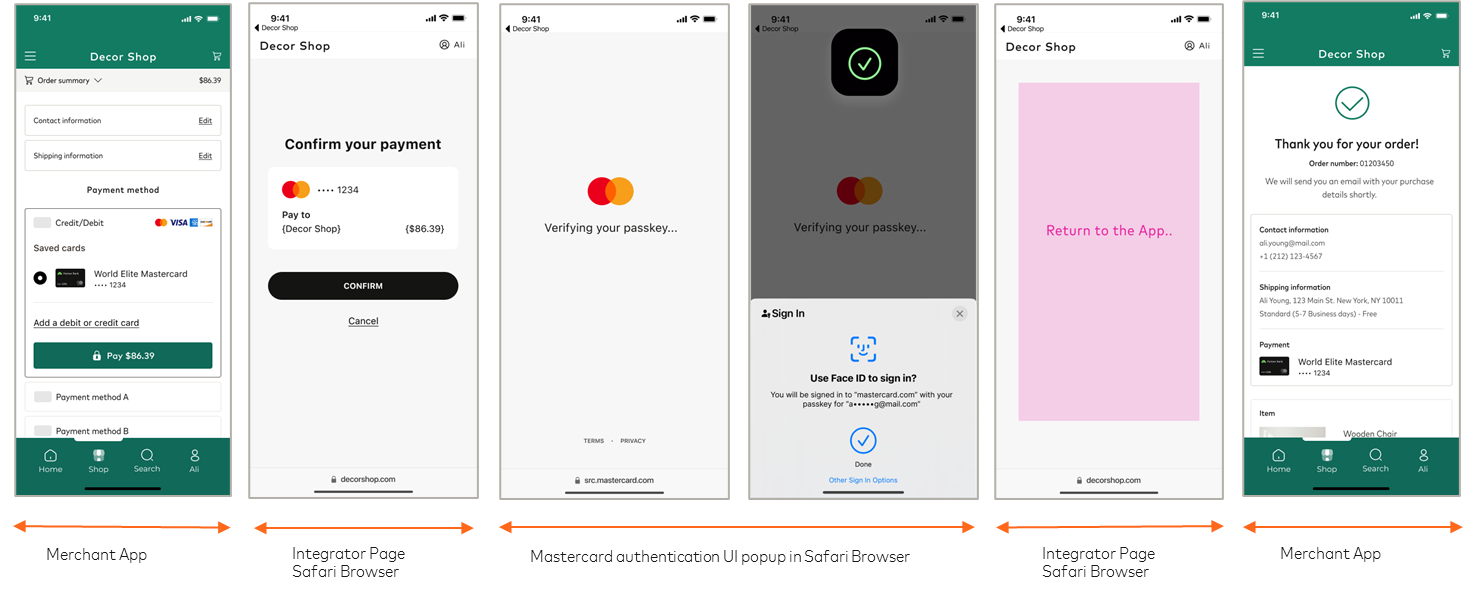
## Step 1: Consumer Selects Mastercard Secure Card on File for Checkout {#step-1-consumer-selects-mastercard-secure-card-on-file-for-checkout}
1. The consumer initiates checkout by selecting Secure Card on file on Merchant app that invokes Integrator's web session in Safari Browser App.
## Step 2: Invoke Authentication UI and Checkout {#step-2-invoke-authentication-ui-and-checkout}
1. Integrator displays a Call-To-Action (CTA) button on the Safari browser page for launching the [Authentication UI](https://developer.mastercard.com/mastercard-checkout-solutions/tutorial/integrate_apis_scof/step5/index.md).
2. The Authentication UI initiates passkey authentication process for the recognized consumer on a trusted device.
3. Consumer completes biometric authentication and Mastercard responds to the Integrator with `assuranceData` as proof of authentication.
4. Integrator completes the checkout with `assuranceData`, and consumer returns to the merchant app page.
5. Integrator displays successful order placement message to the consumer on the merchant app.
Diagram asWebAuthN_authentication_2
## Safari Browser App Sample Code {#safari-browser-app-sample-code}
Note:
The Integrator should implement the return-to-app functionality from the safari browser by following Apple's recommended callback mechanism. They can use either a custom URL scheme or universal links, as outlined in Apple's documentation.
* [Apple Developer Documentation for Custom Scheme](https://developer.apple.com/documentation/xcode/defining-a-custom-url-scheme-for-your-app)
* [Apple Developer Documentation for Universal Link](https://developer.apple.com/documentation/xcode/supporting-universal-links-in-your-app)
1. Import required packages.
* Swift
```Swift
Import UIKit
```
2. Create or retrieve the Integrator's URL to open it using Safari browser app.
* Swift
```Swift
let url=URL(string:"https://decorshop.com")!
```
3. Open the Integrator URL in Safari browser app.
* Swift
```Swift
UIApplication.shared.open(url)
```
4. Sample code snippet:
* Swift
```Swift
import UIKit
let url = URL(string:"https://decorshop.com")!
UIApplication.shared.open(url)
```