# Activate the Mastercard Developers Client Using the MitID
source: https://developer.mastercard.com/bs-creditor-api/documentation/tutorials-and-guides/guide-1/index.md
The consumer key and certificates authenticate a creditor's Mastercard Developers account but do not identify a creditor. Therefore, a creditor must manually activate their Mastercard Developers client to link their creditor information with their Mastercard Developers client ID.
Note: Activation is required only for the Production environment and not needed for the Sandbox environment.
All requests to the BS Creditor API are validated to ensure the Mastercard Developers client has been activated for production access. Any API requests from a non-activated client are rejected. This activation occurs in the [BS Customer Portal](https://www.mastercardconnect.dk/-/sign-in). Here are the steps that you need to perform to activate your Mastercard Developers client using the MitID to ensure it is activated and ready to send requests to the BS Creditor API.
### Before you Begin {#before-you-begin}
Ensure you have completed the steps in the [Quick Start Guide](https://developer.mastercard.com/platform/documentation/getting-started-with-mastercard-apis/quick-start-guide/). Activation of the Mastercard Developers client can only be initiated after obtaining the production keys (see the [Go Live](https://developer.mastercard.com/platform/documentation/getting-started-with-mastercard-apis/quick-start-guide/#go-live)).
### Step 1 {#step-1}
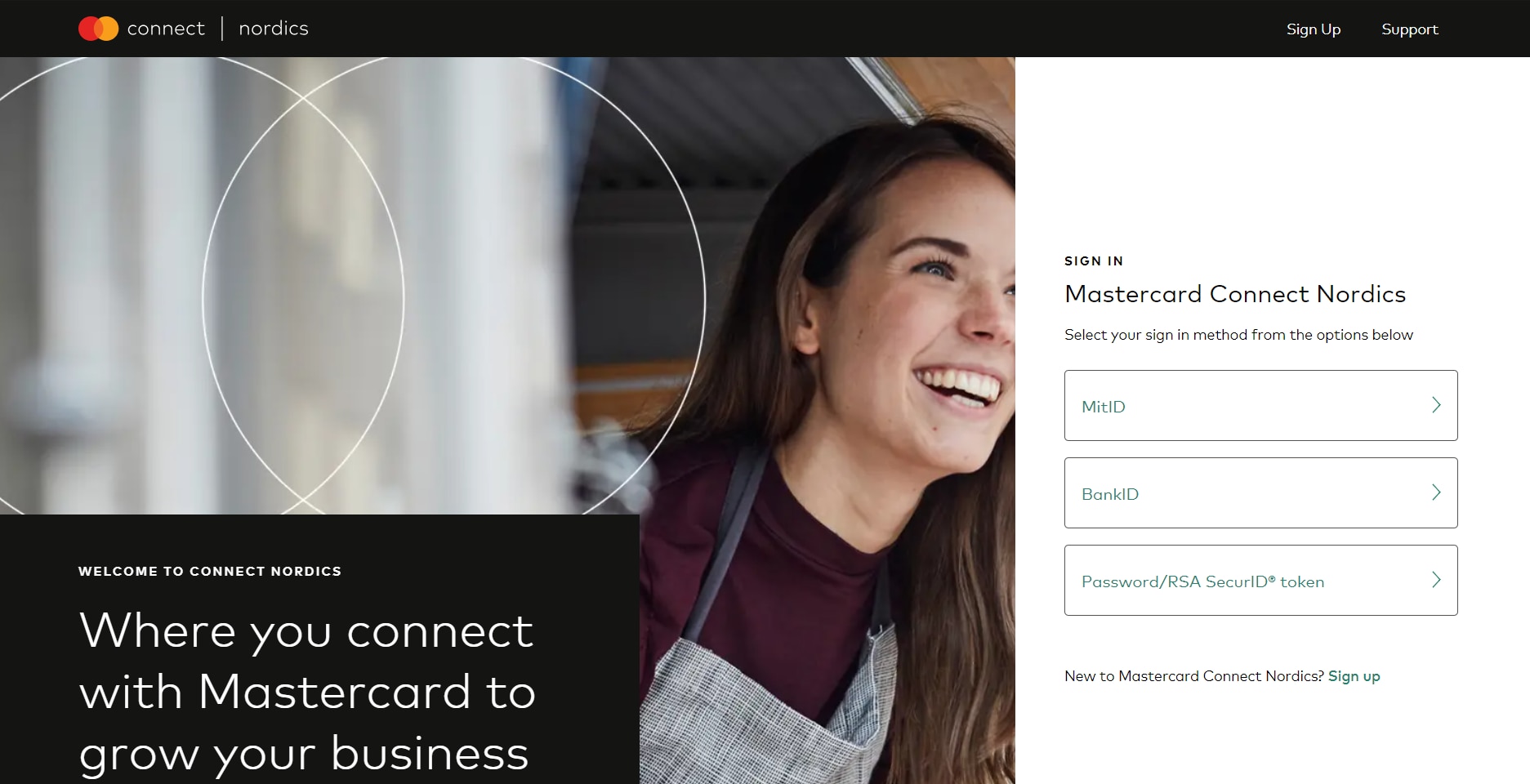
Sign in to the [BS Customer Portal](https://itf.mps.mastercardconnect.com/-/sign-in) through Mastercard Connect Nordics using the **MitID** option.
### Step 2 {#step-2}
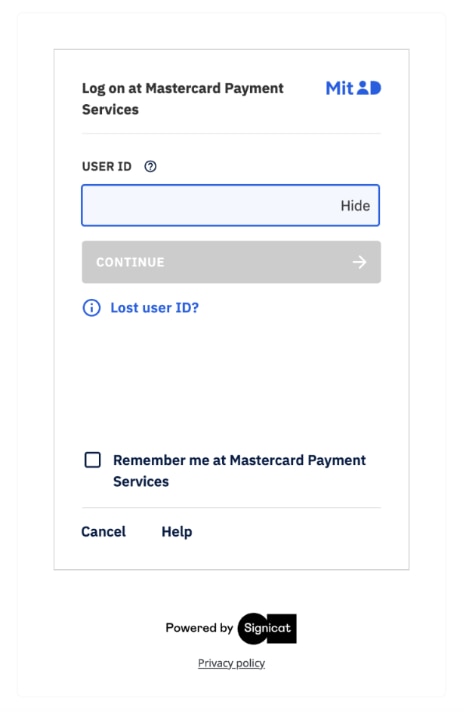
Specify the user ID and click **Continue**. If you are integrating on behalf of a creditor, you must log in to the BS Creditor Portal with the creditor's MitID to activate the Mastercard Developers client.
### Step 3 {#step-3}
Select the **BS Customer Portal** option in the menu to view the **BS Customer Portal** home page.

### Step 4 {#step-4}
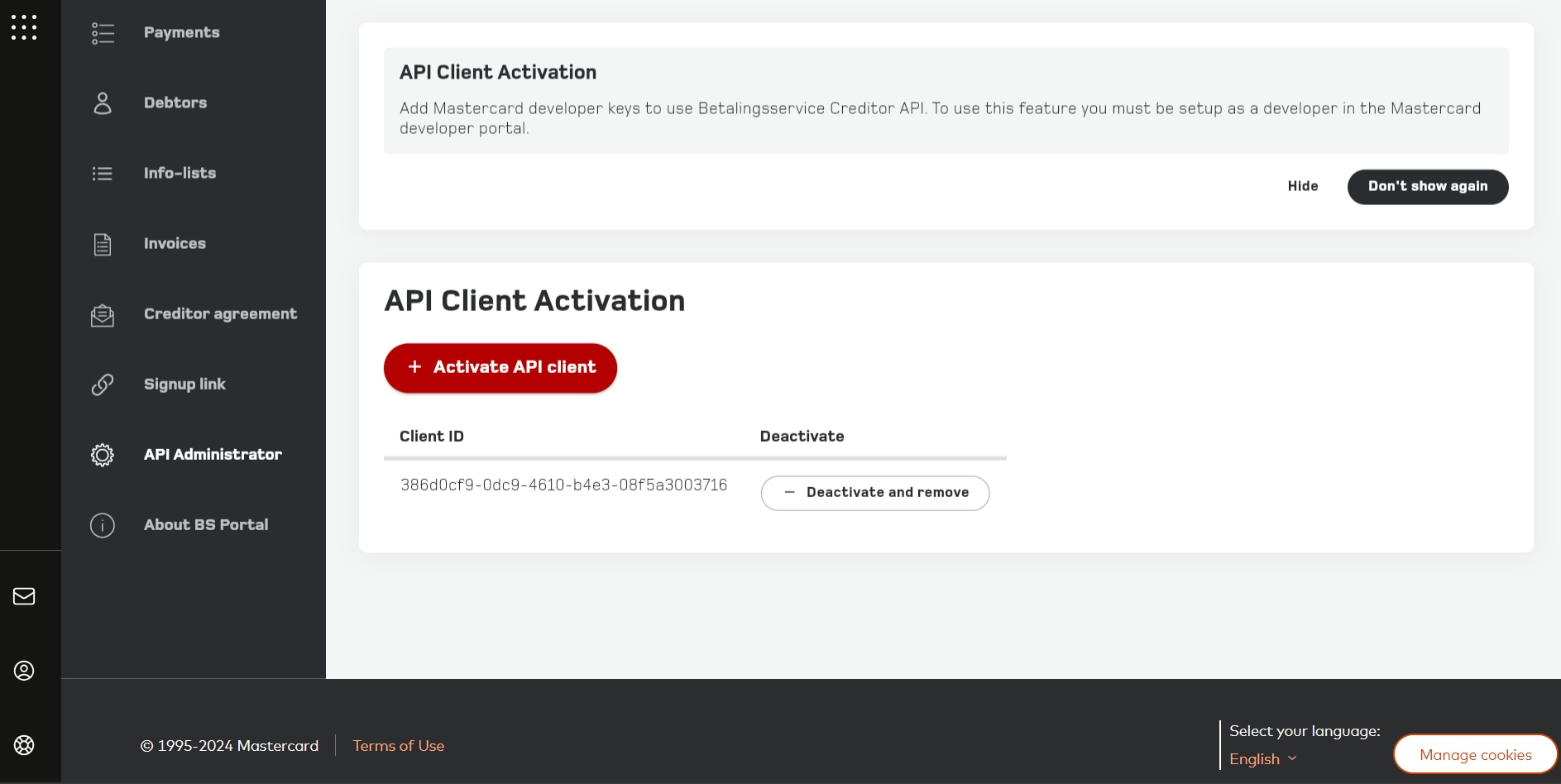
On the **BS Customer Portal** home page, select the **API Administrator** option in the menu to open the **API Administrator** page. This page provides an overview of your Mastercard Developers clients and allows you to manage access to the Production environment.
### Step 5 {#step-5}
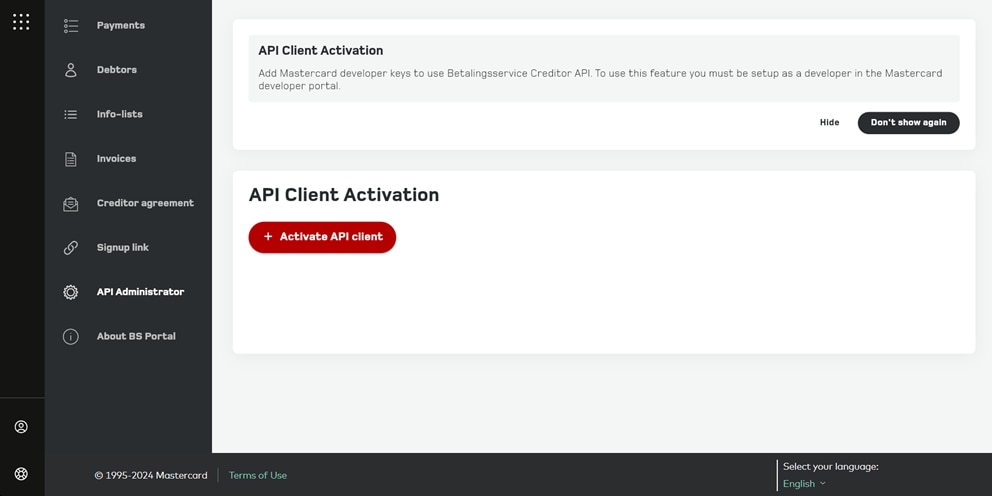
Click the **Activate API Client** button and add your Mastercard Developers client ID in the **Activate new API client ID** window and click the **Activate** button.
Note: The Mastercard Developers client ID can be found in your Mastercard Developers project or in the email containing your production keys. 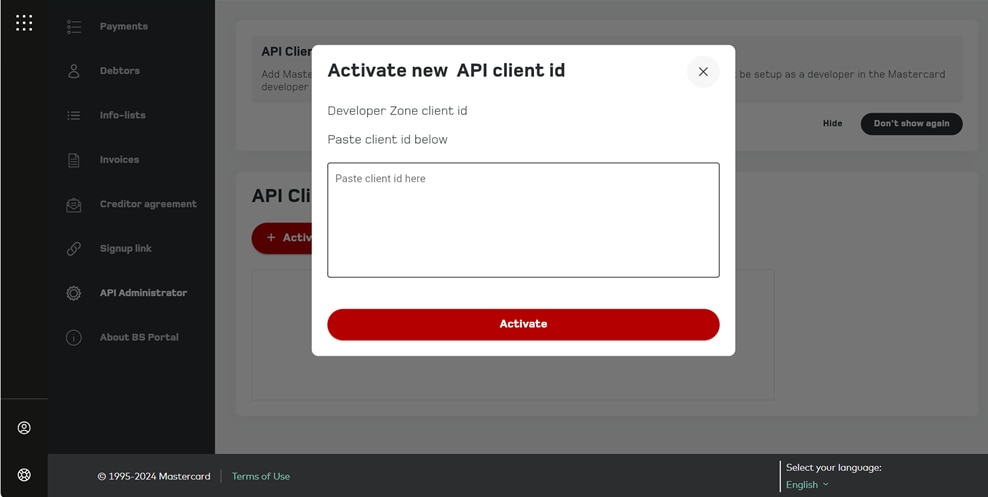
This activates your Mastercard Developers client ID and links it to your creditor information. The active client IDs are visible in the **API Client Activate** list, and can be deactivated or removed, as needed. Your API client is now ready to connect and make requests to the BS Creditor API.